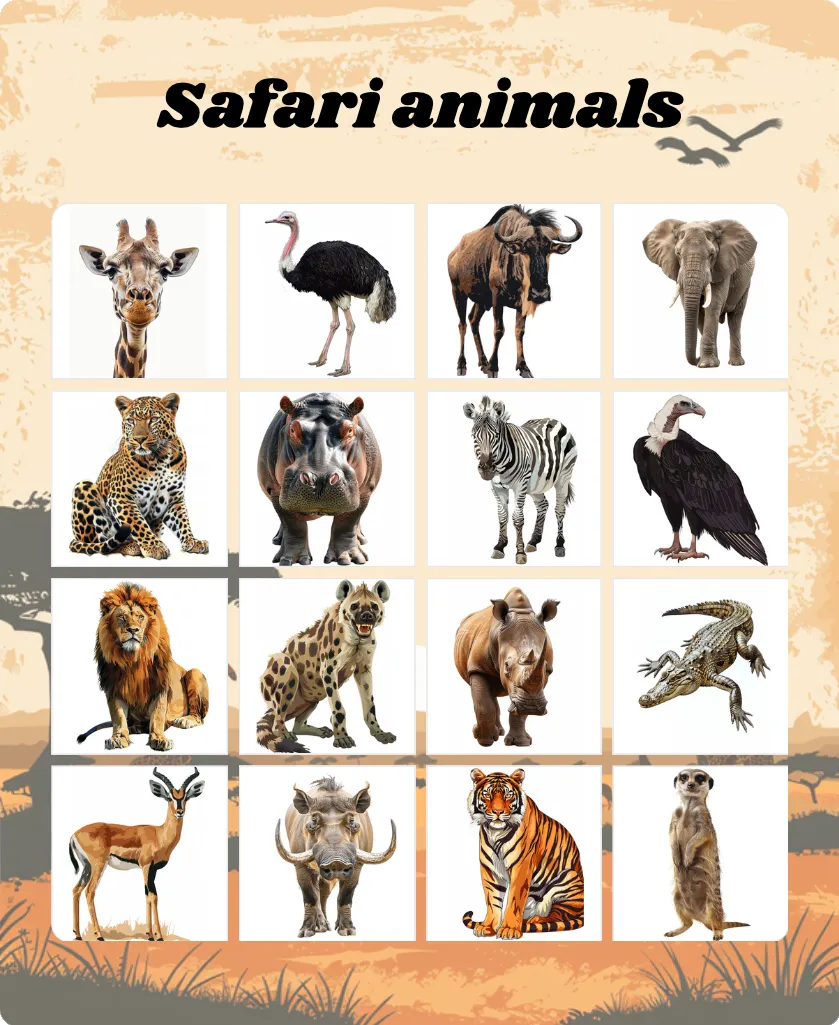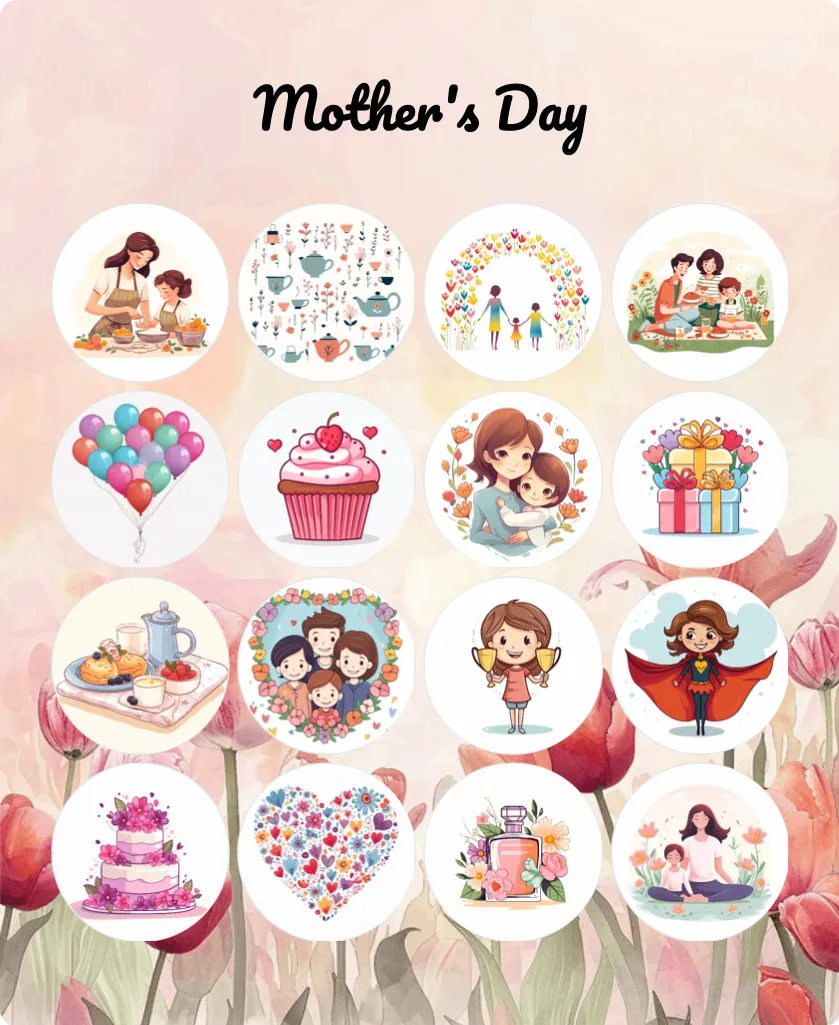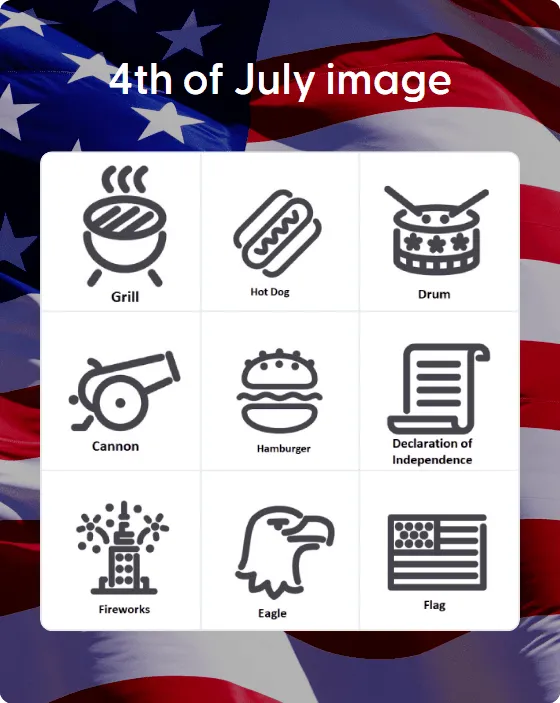
Picture bingo card generator
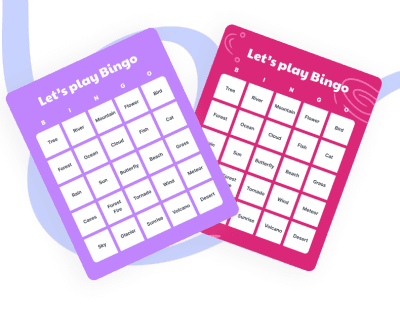
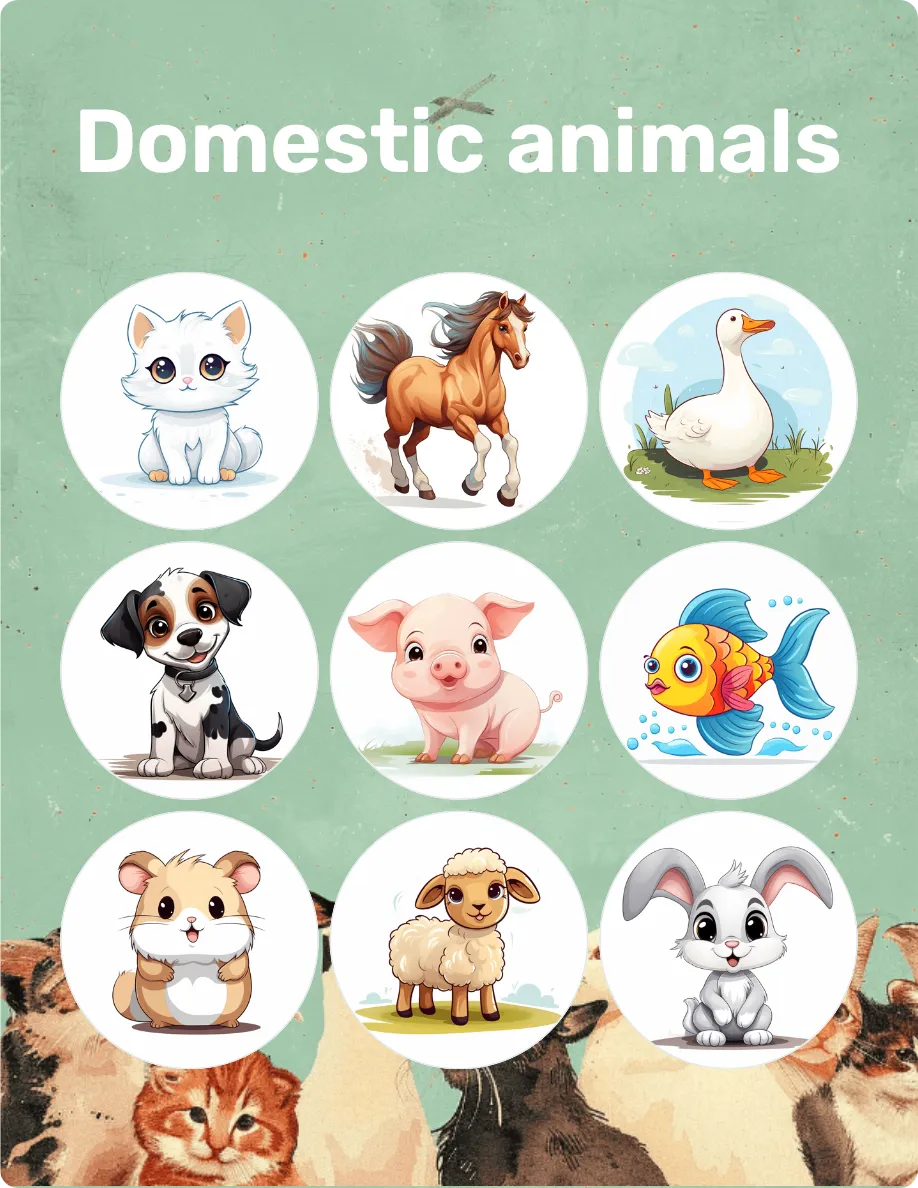
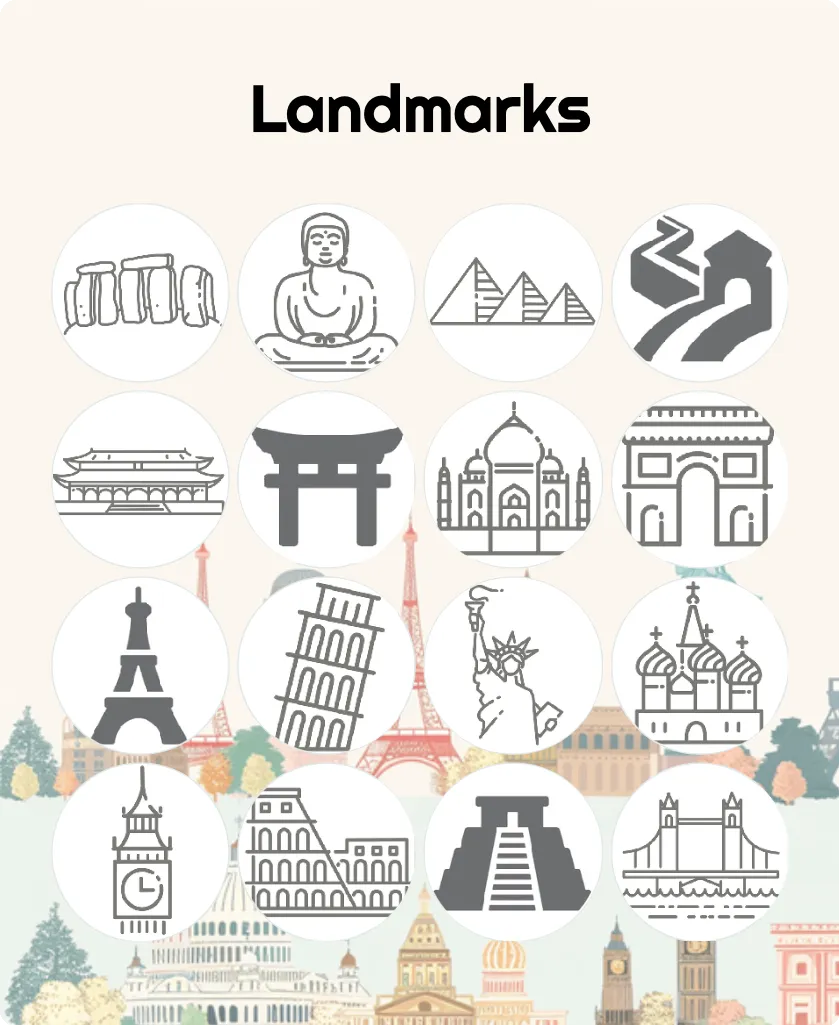
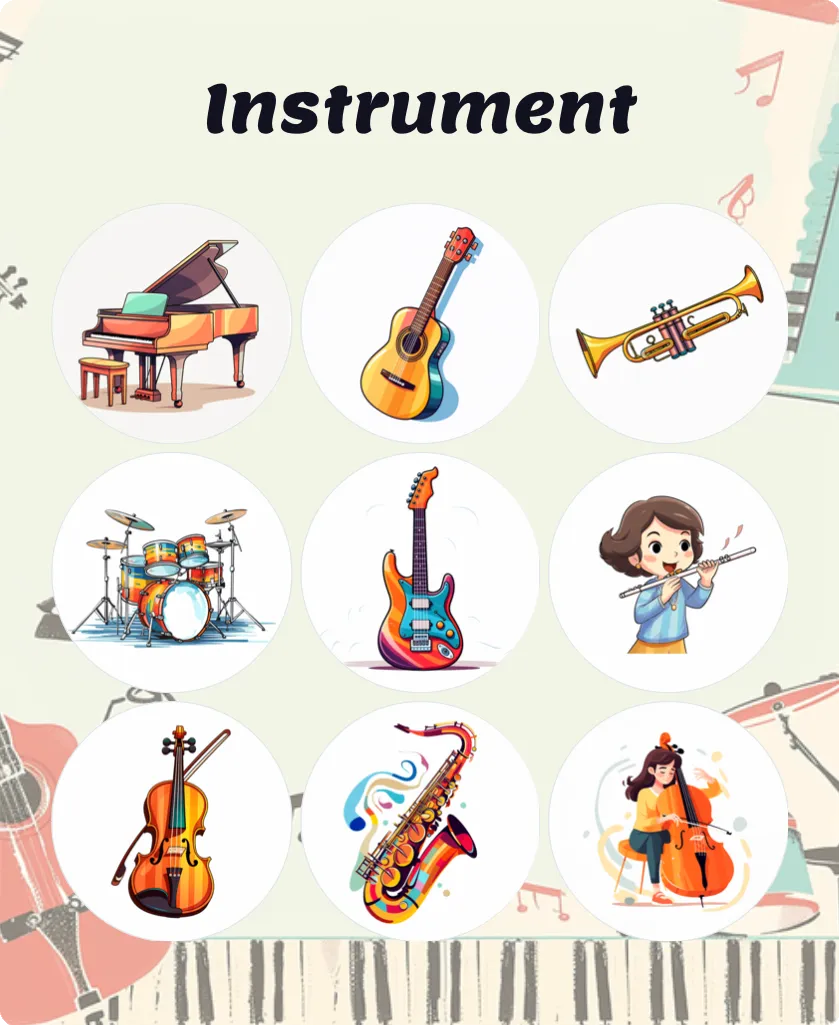
Picture bingo uses images on their own or alongside words and numbers. Browse ready-made cards featuring animals, fruit, shapes, clocks, flags, instruments, seasons, holidays, and other visual themes. Choose a template to edit and print, or replace its contents with your own pictures and captions. A 3×3 grid suits a shorter game, while 4×4 and 5×5 cards provide more images and a longer round. You can also share cards for online play.
How to choose and play picture bingo
Picture bingo follows the familiar rules of bingo, but the squares contain images rather than number combinations. A caller selects one item at a time, and players mark the corresponding picture if it appears on their card.
Before choosing a card, decide how you will call each image. You can show players the same picture, say its name, or give them a clue. Showing the picture creates a straightforward matching game. Saying the name or giving a clue asks players to recognize the subject before they scan the card.
What is picture bingo?
A picture bingo card can use images alone or combine each image with a written caption.
On image-only cards, players identify each item from its picture. Captions connect the picture with its name and clarify the answer when two images look similar.
The caller does not have to use the same format as the card. For example, players might have pictures of fruit while the caller says “watermelon,” shows a separate watermelon image, or describes “a large green fruit with red flesh.”
Whichever method you choose, explain it before the game begins and use it consistently throughout the round.
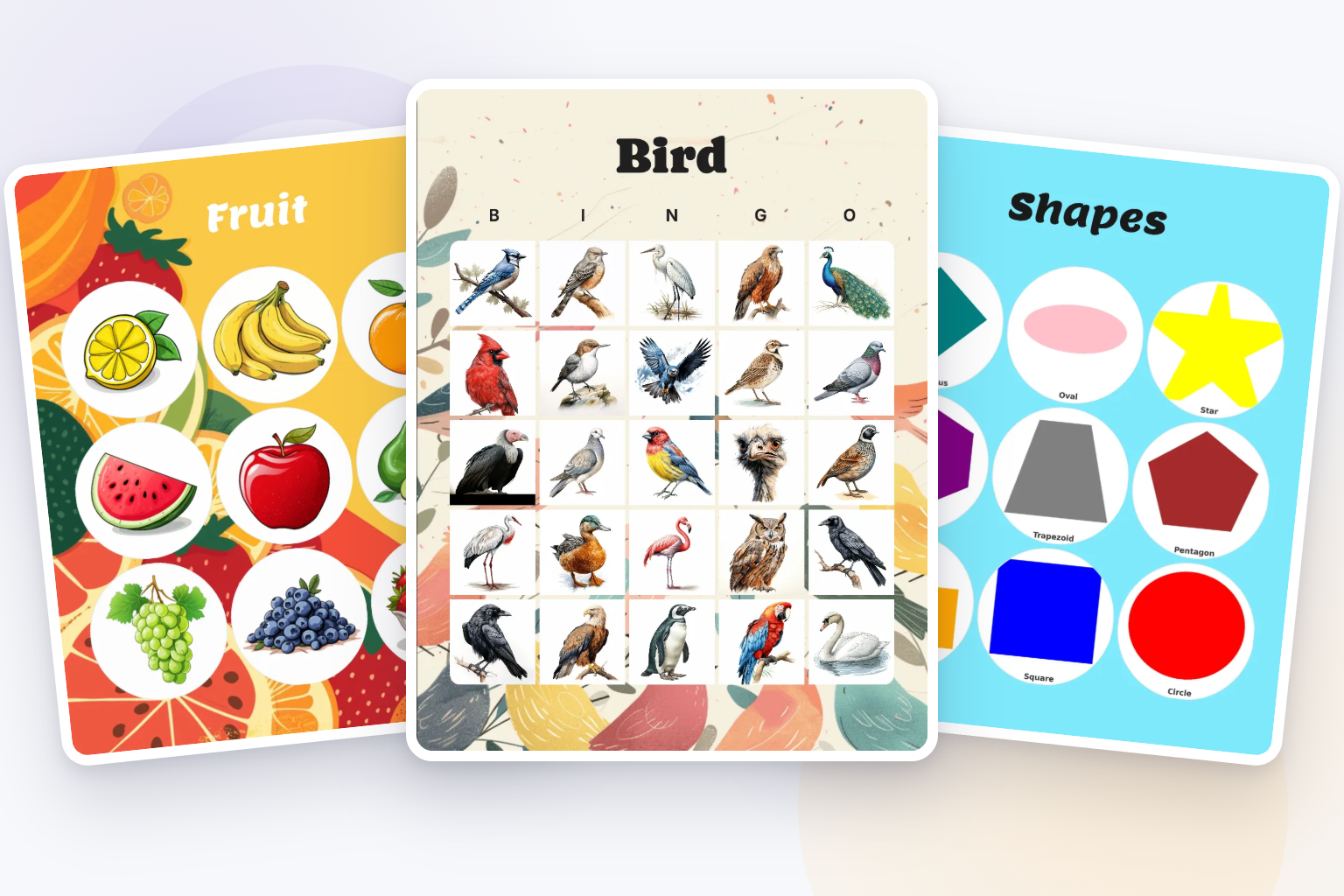
Choose a template that fits the activity
Start with what players should notice or identify. The collection includes templates for several different kinds of game:
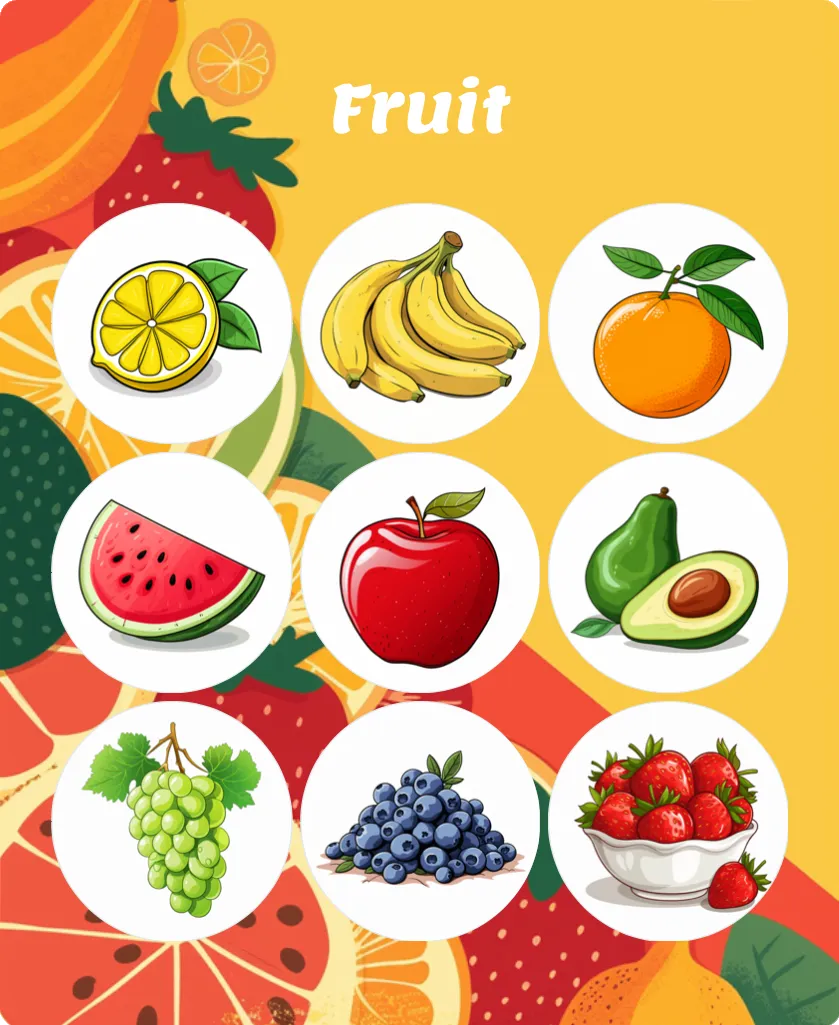
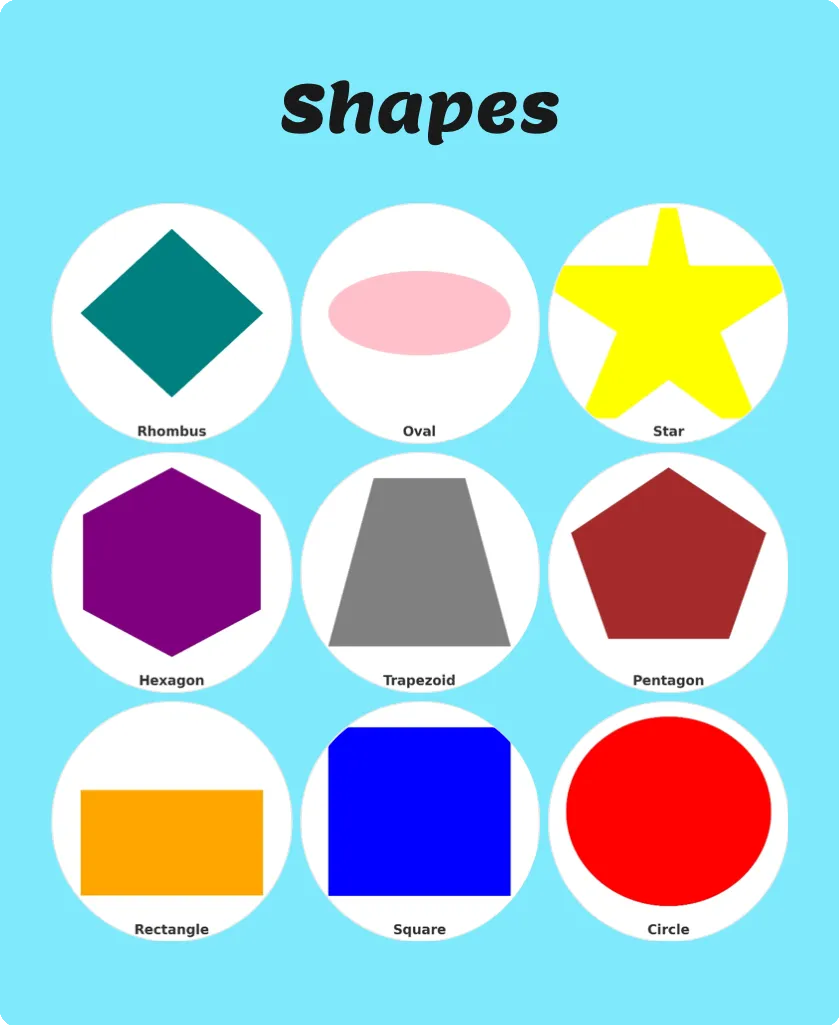
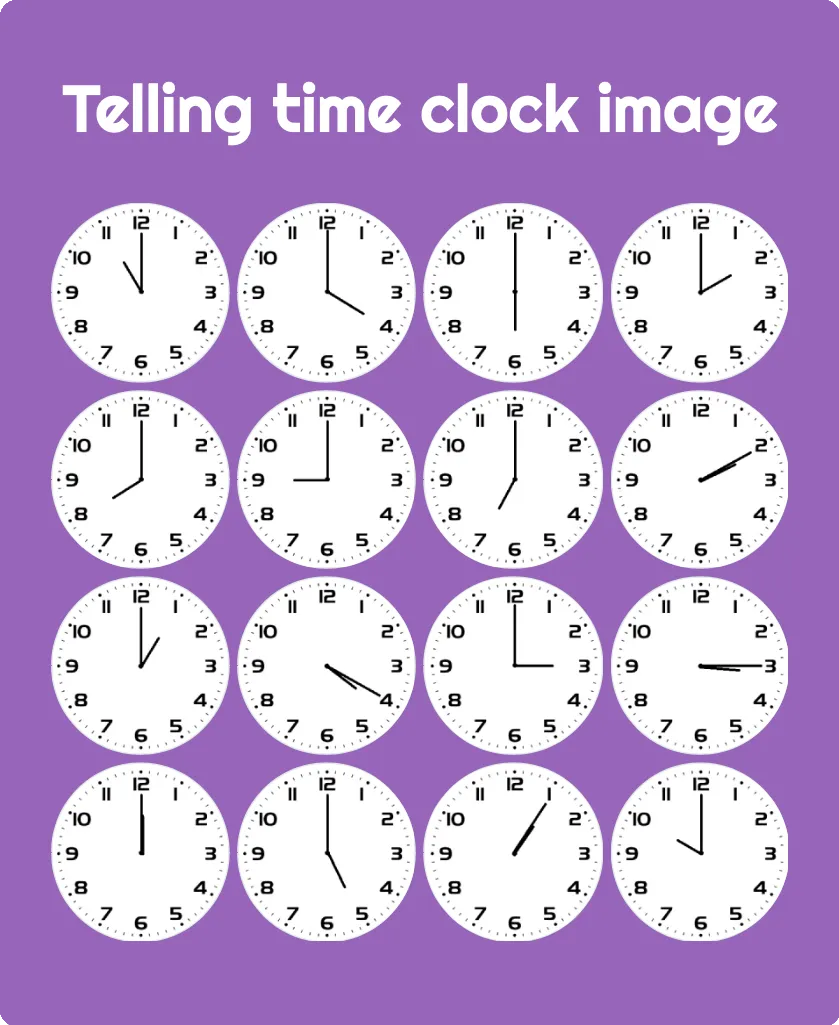
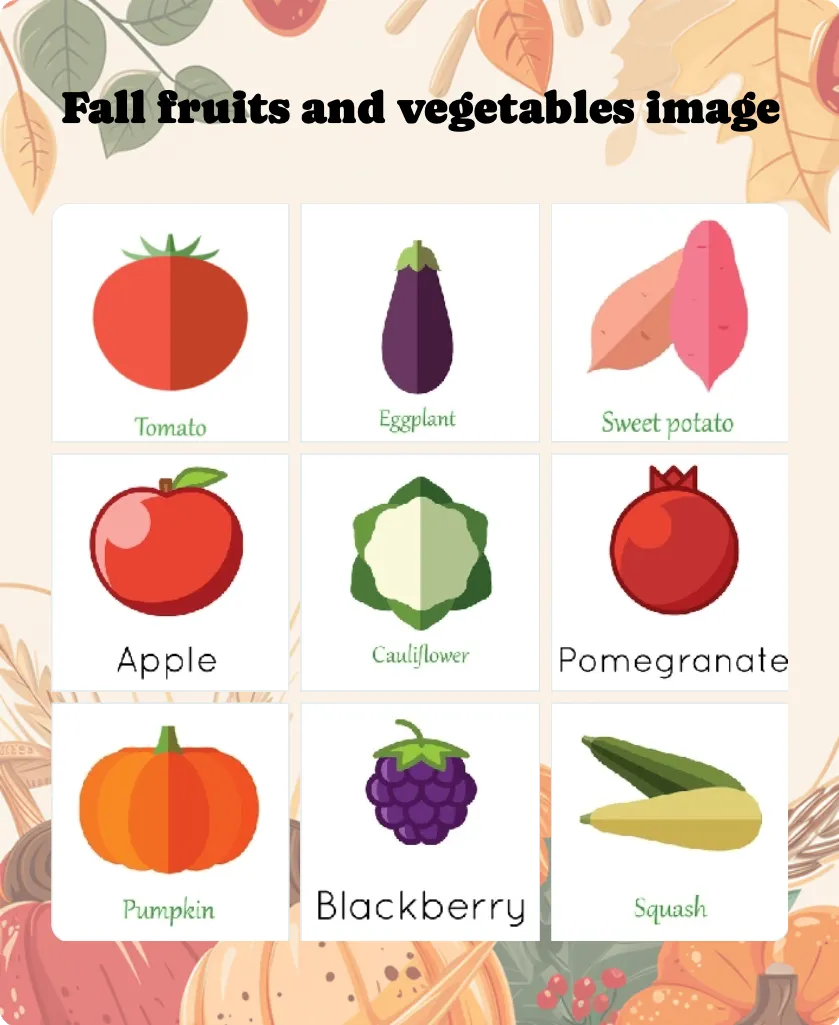
- Shapes, Fruit, Vegetable, Instrument, Transportation image, and Telling time clock image focus on objects and basic recognition.
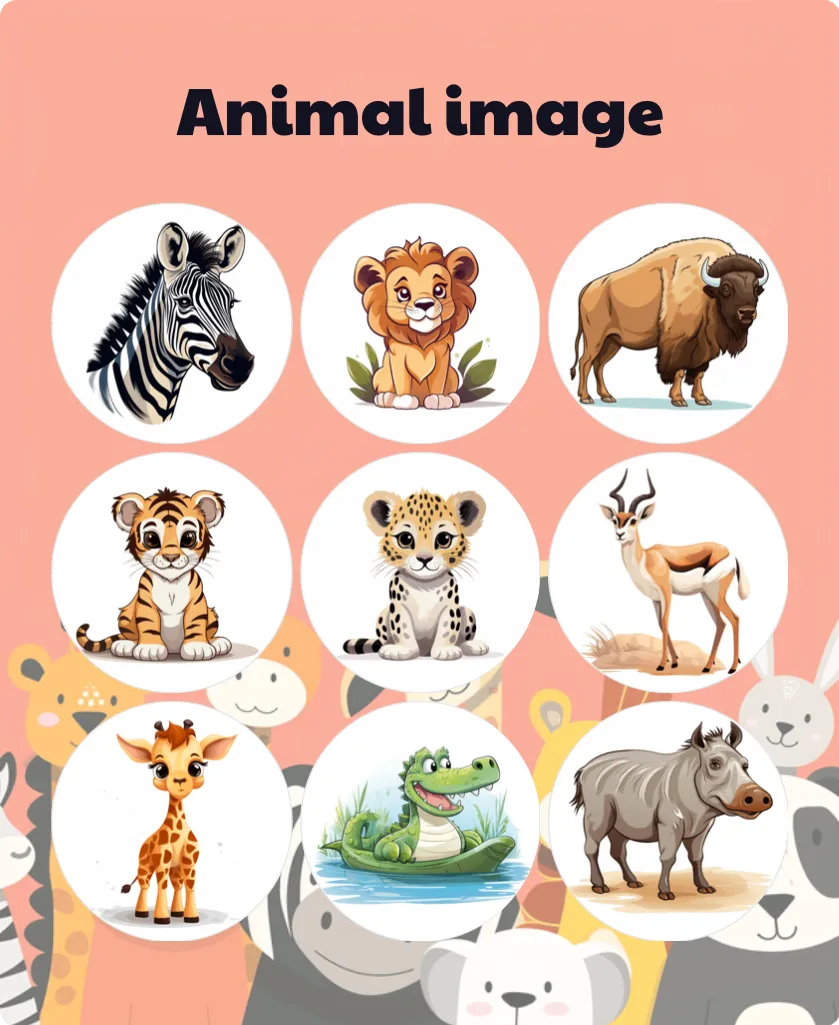
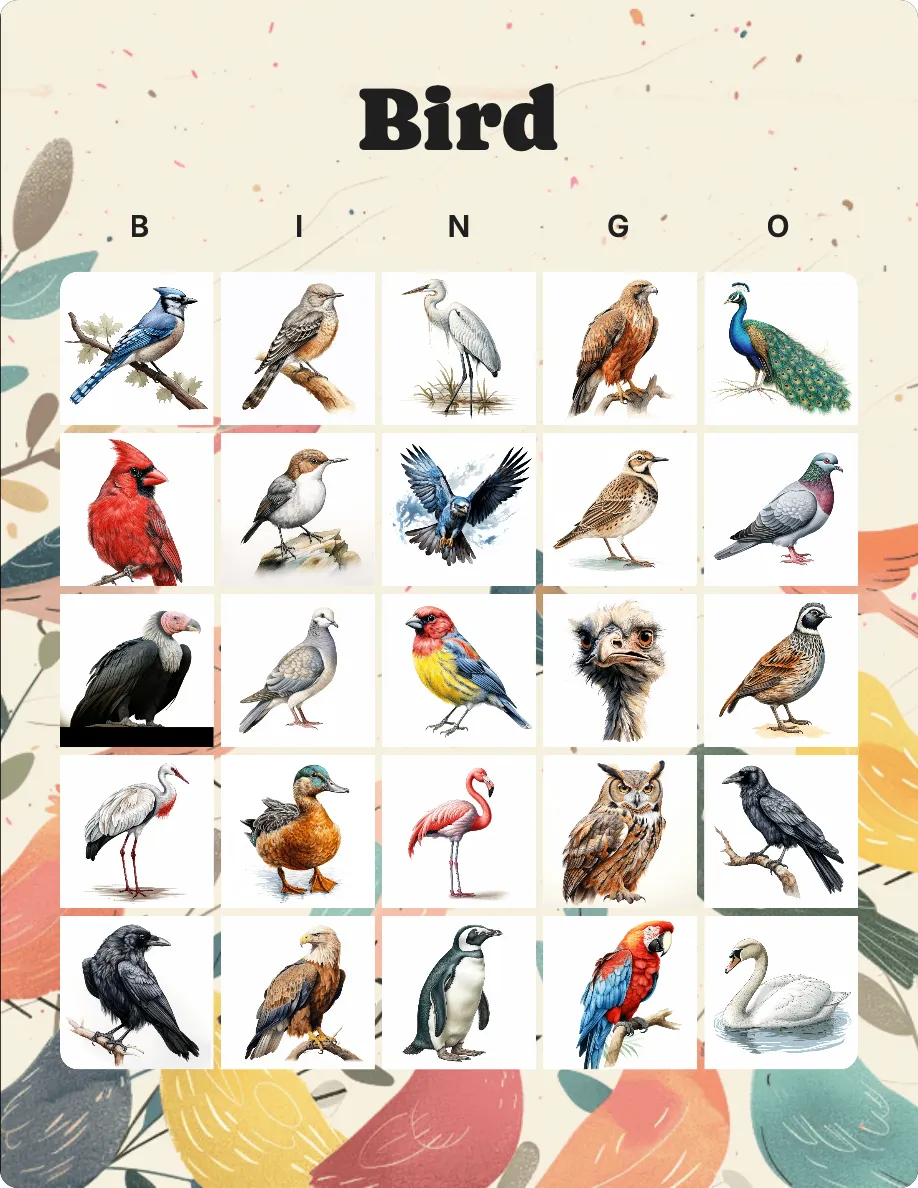
- Bird, Animal image, Safari animals, Ocean creatures, Jungle animals, Insects and reptiles, and Botanical garden image cover animals and nature.
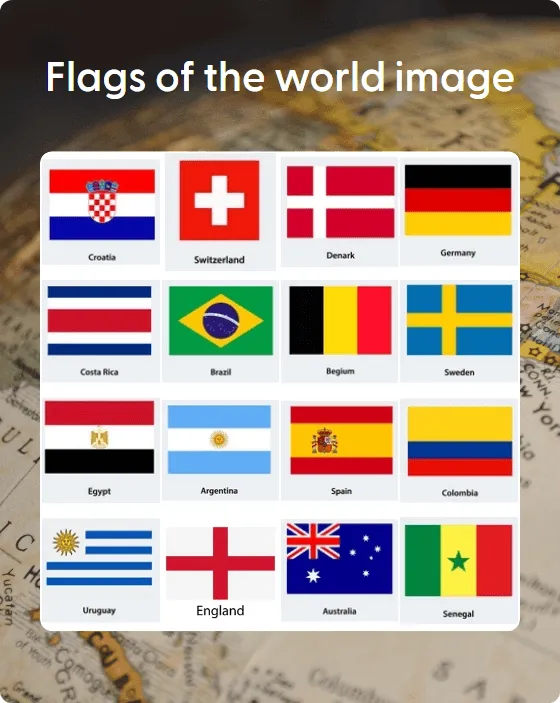
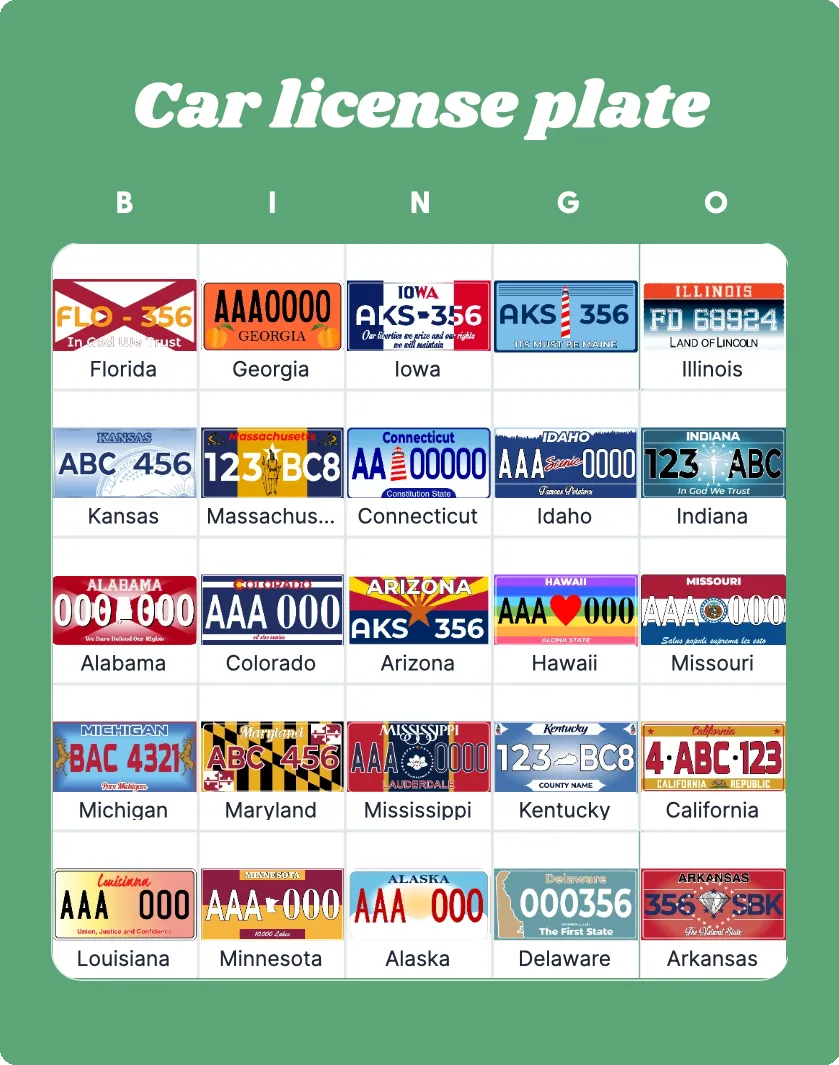
- Car license plate, Flags of the world image, Historical landmarks, and Beach image suit travel or observation games.
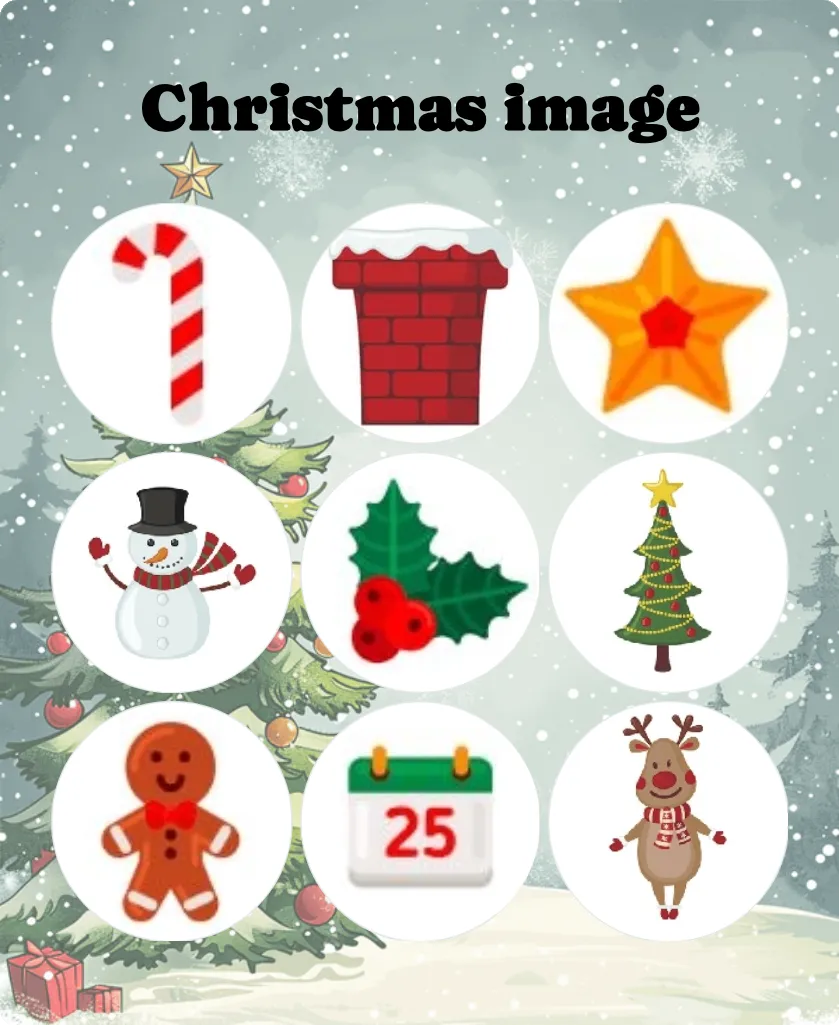
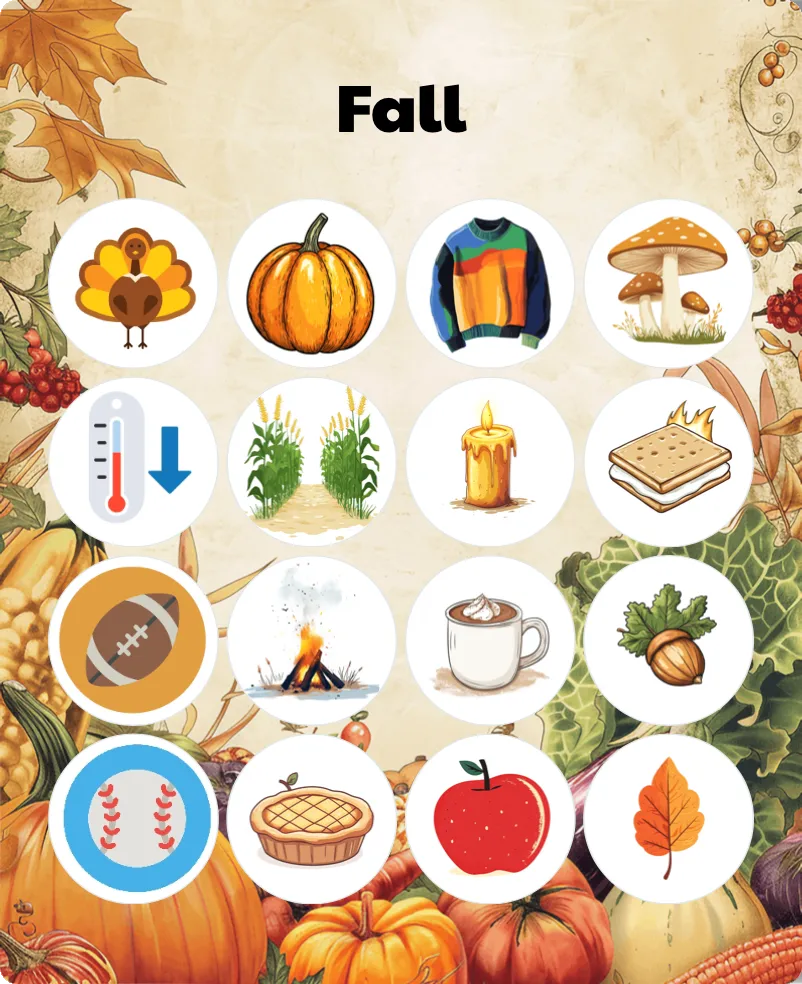
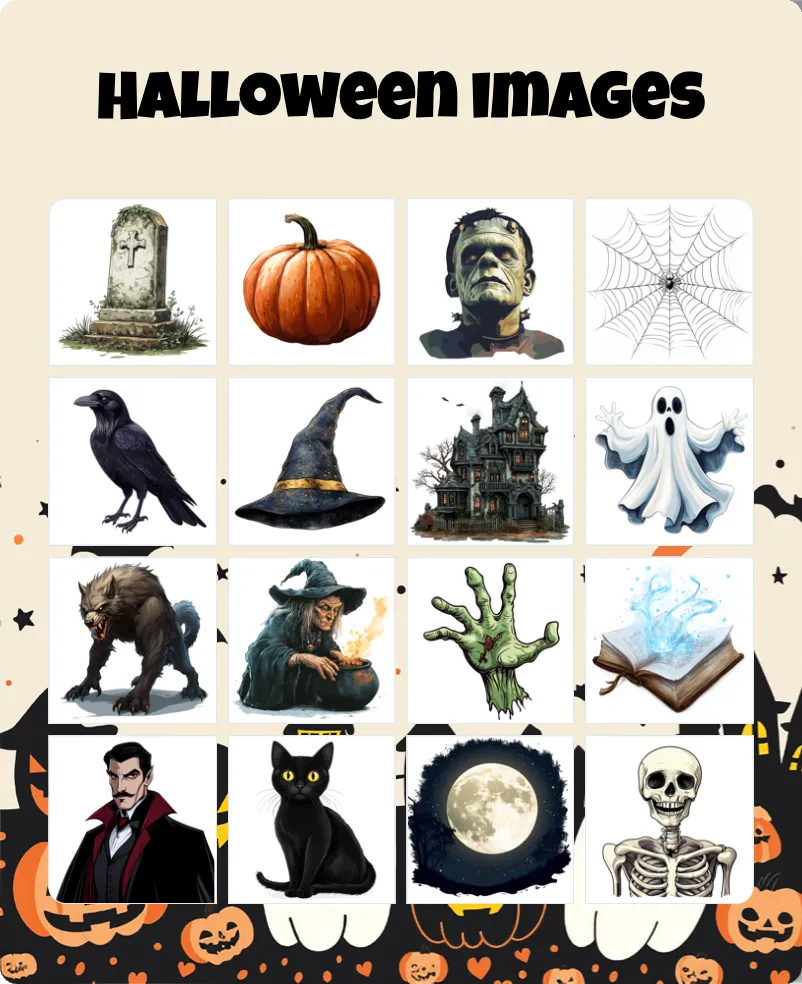
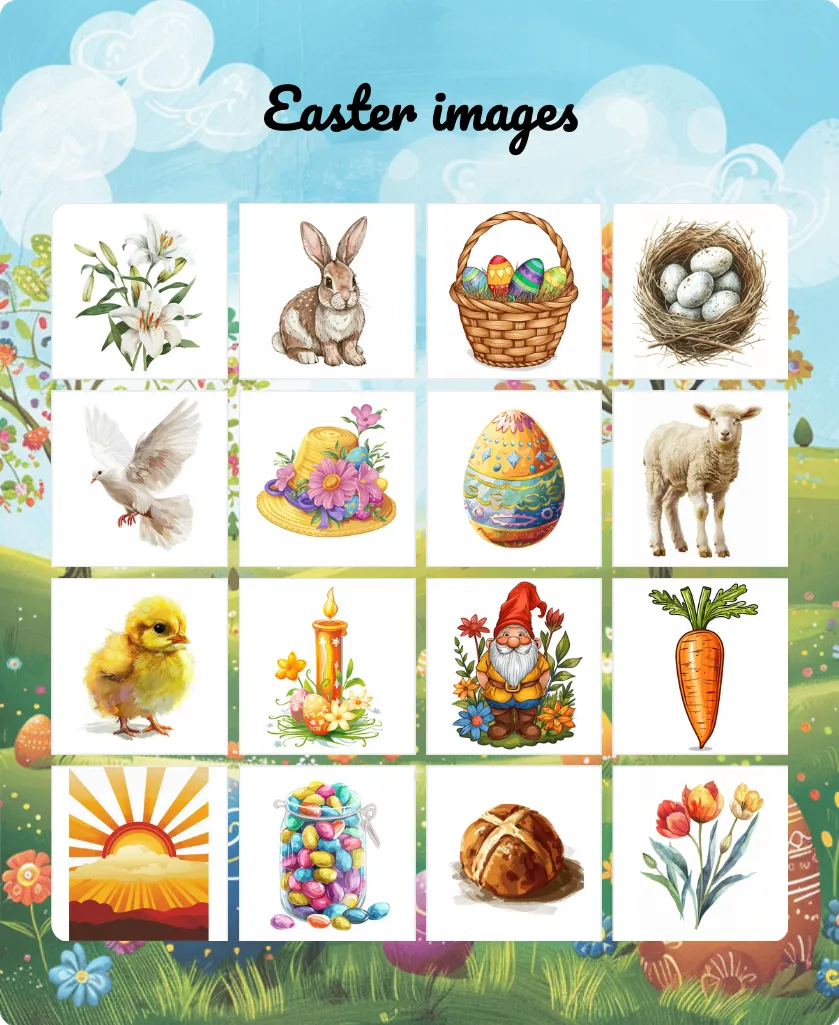
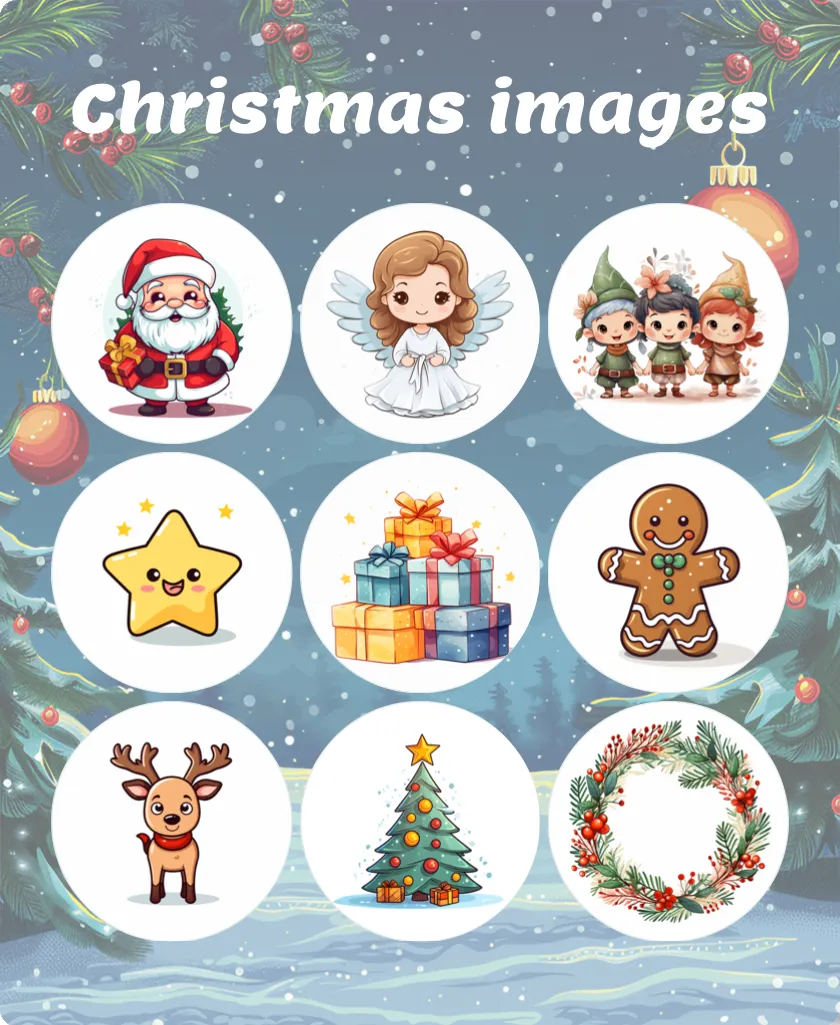
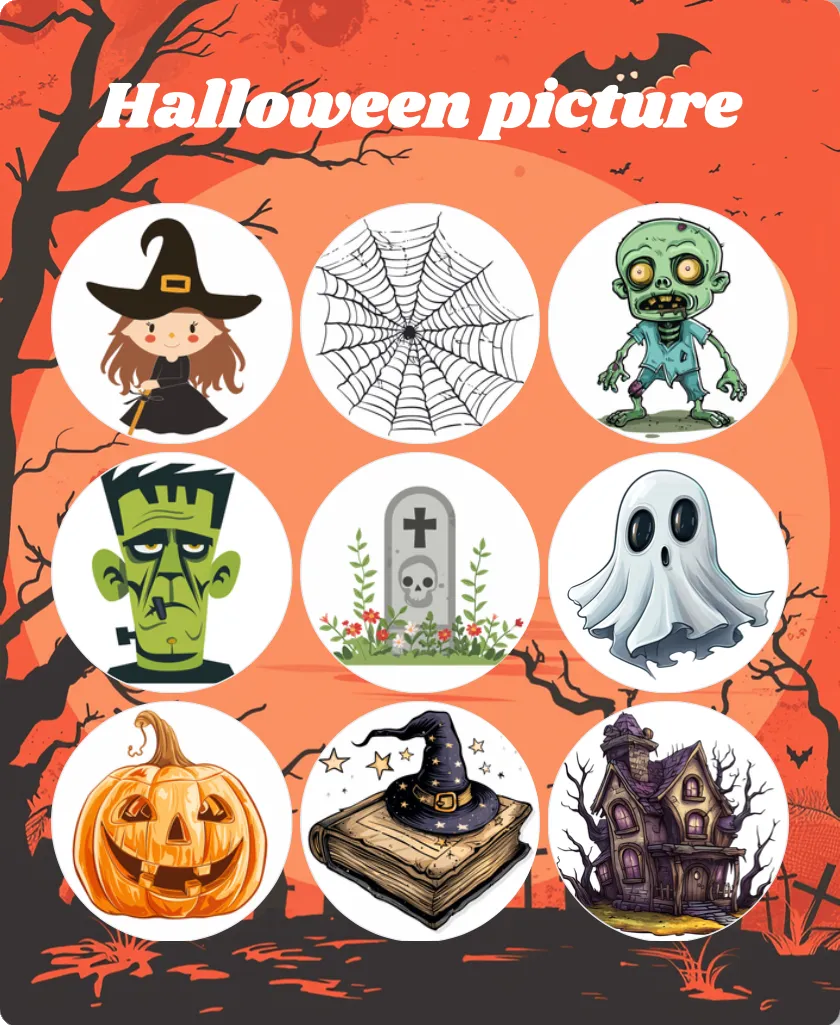
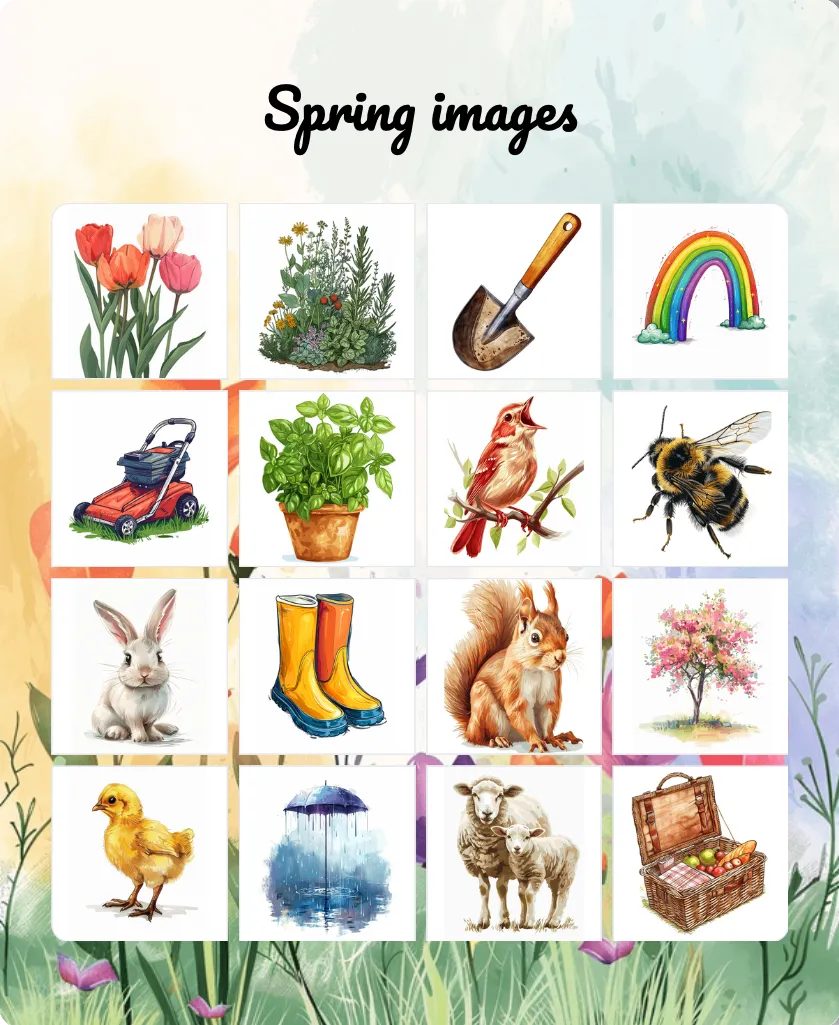
- Christmas image, Halloween images, Easter images, Fall/Autumn, Spring images, and Thanksgiving images cover seasons and celebrations.
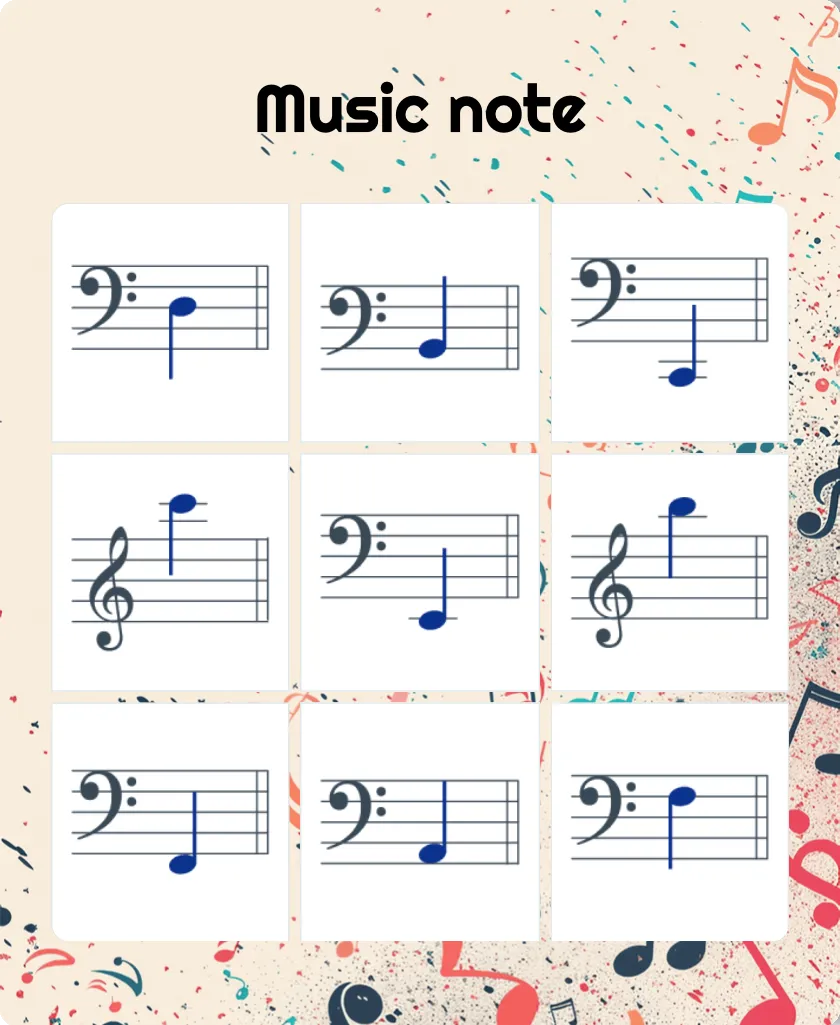
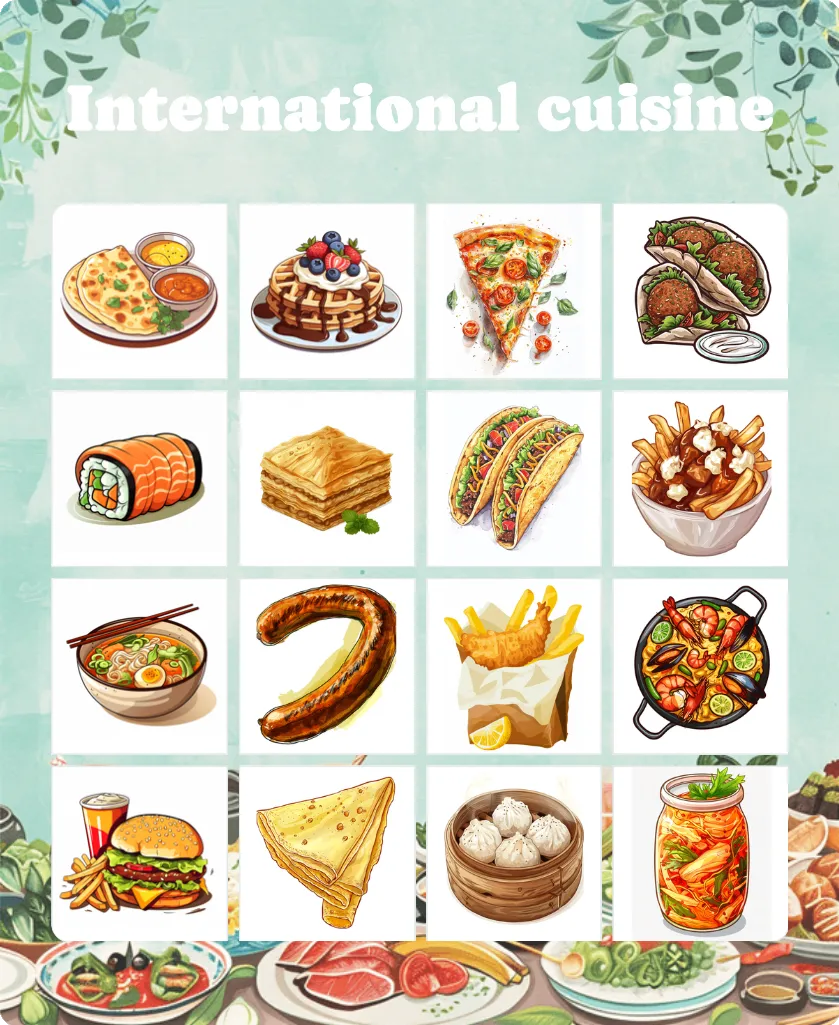
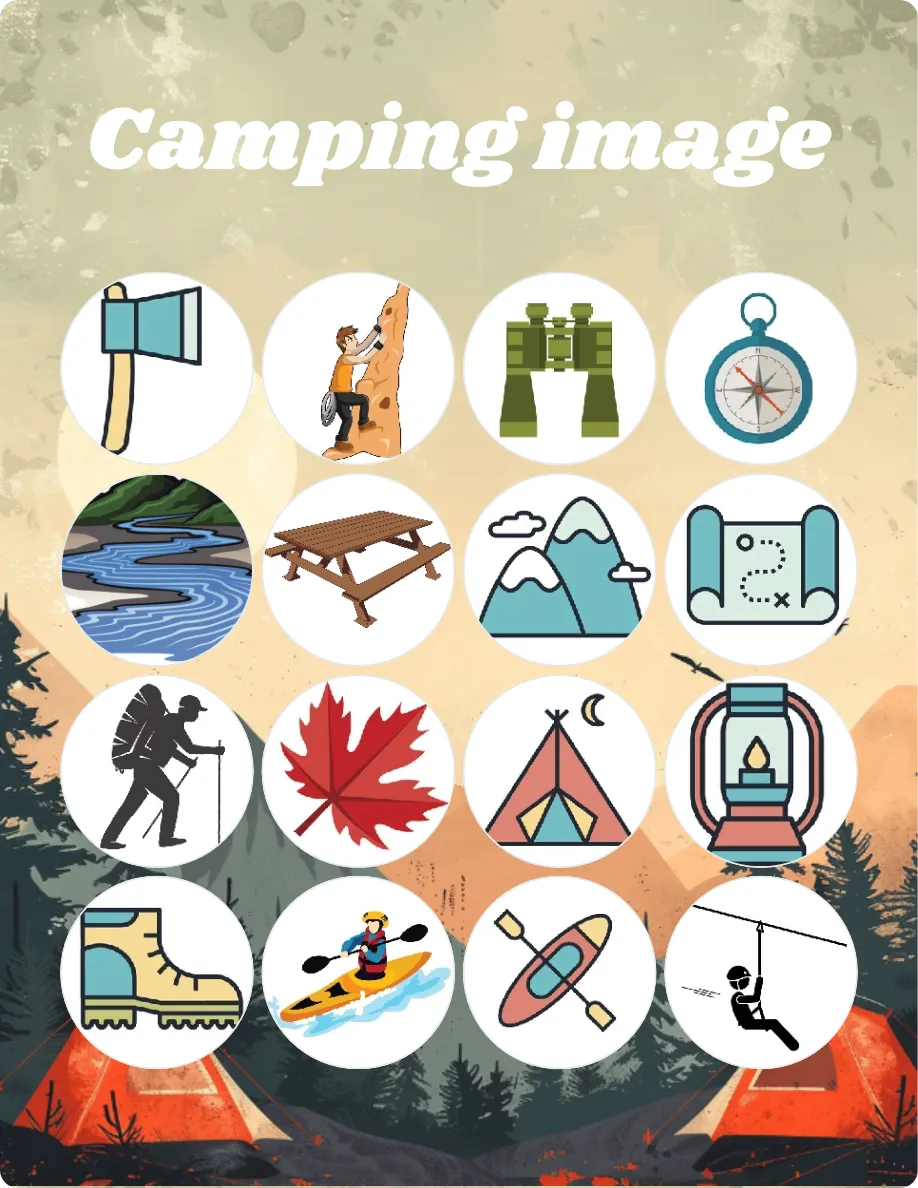
- Camping image, Tea party, International cuisine, Exercise images, Music note, and Space draw on interests and activities.
A template is not tied to one setting. You could use the Bird card for a nature-club game, a classroom activity, or a round that players complete while watching a feeder.
Before selecting a card, check that its images are appropriate for the participants and recognizable at the size they will be printed or displayed.
Choose the grid size
The card editor supports 3×3, 4×4, and 5×5 custom grids.
- Choose 3×3 for a shorter round or when players benefit from having fewer images to scan.
- Choose 4×4 for a medium-length game with more variety.
- Choose 5×5 for a longer game or a larger collection of images.
Grid size is only one part of the decision. A 5×5 card filled with detailed or similar-looking images may be harder to use than a 3×3 card with clear, distinct subjects.
If you want each generated card to contain a different selection of pictures, rather than the same pictures in different positions, add more items than there are squares on one card.
Decide how the pictures will be called
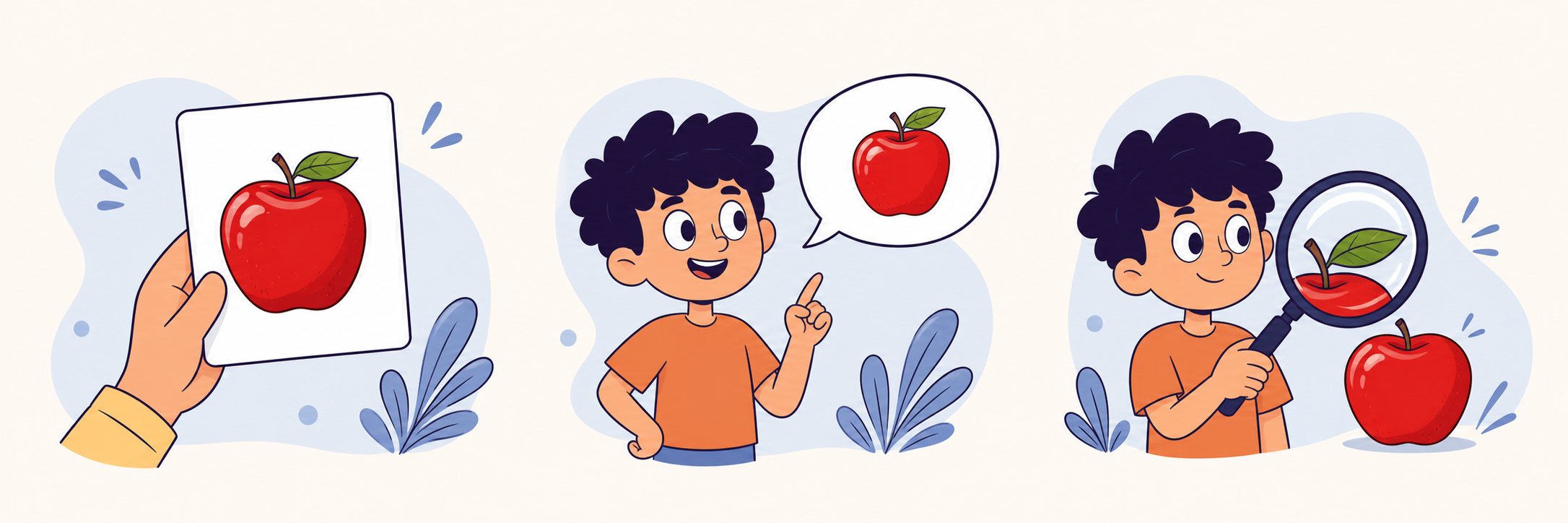
You can call each picture in one of three ways.
Show the picture
Display or hold up the exact image and ask players to find the match on their cards.
Showing the image is the most direct option. Use it for visual matching or when players may not know the written name of every item.
Make sure everyone can see the caller image clearly. For a larger room, a screen may work better than a small printed calling card.
Name the picture
Say the name of the item while players find its image.
Captions on the card can help when an illustration could reasonably be interpreted in more than one way. If the intended answer is “seal,” for example, avoid using an image that could easily be mistaken for a sea lion unless that distinction is part of the game.
Give a description or clue
Describe the item without naming it.
The clue “this animal has black-and-white stripes” asks players to identify the zebra before looking for it. You can make a familiar card more challenging without changing its images.
Write the clues down before the game. That prevents the difficulty or wording from changing between players and helps you avoid clues with several possible answers.
How to play with printed cards
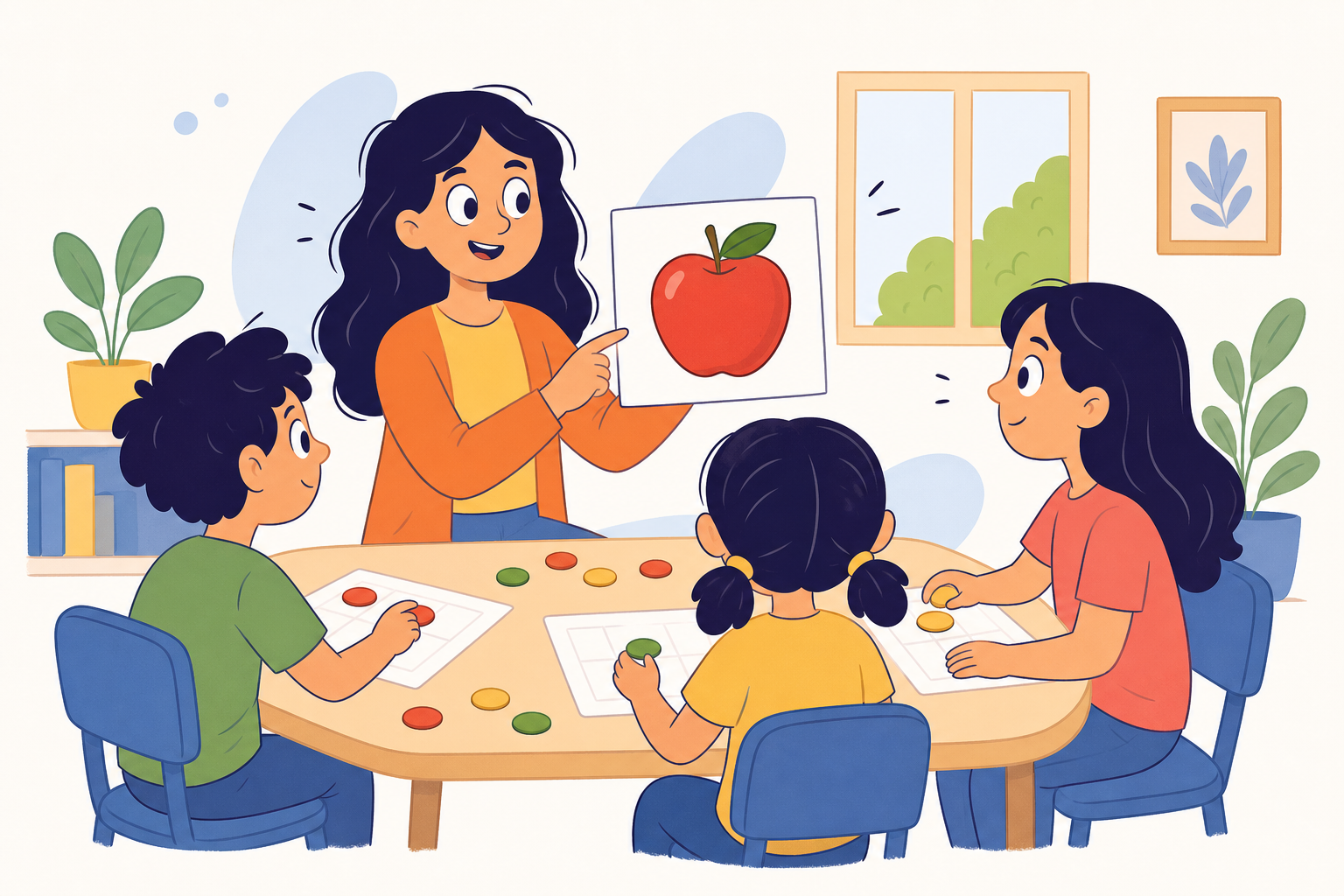
- Choose a picture template and edit any images or captions that do not fit your game.
- Select the grid size and decide whether to include a free space.
- Generate enough randomized cards for the group.
- Include a caller card when preparing the printout, or make a separate list of the images and clues.
- Give each player a card and something they can use as a marker.
- Explain how items will be called and what counts as a win.
- Call one item at a time, leaving enough time for players to find and mark it.
- Check the winning card against the items already called.
A row, column, or diagonal provides a familiar short game. Four corners or a full card can extend the round, but announce the pattern before play begins.
The print screen lets you select the paper size, number of cards per page, number of generated cards, and whether to include a caller card. Preview the PDF at its intended print size before producing the complete set. See the card-printing guide for the current options.
How to play picture bingo online
With online play, you do not need to hand out printed cards. Players open their cards using a shared link and join from their own devices.
The host can enter the game room, manage the calls, and choose the available game settings. If players need to see an image rather than hear its name, test the chosen calling setup before inviting the full group.
For a mixed in-person and remote event, decide whether everyone will use digital cards or whether local players will have printed copies. Using one calling method for the entire group helps keep the game fair. The online-play guide explains how to share a card and enter the game room.
Make every image easy to recognize
An image that looks clear on a full-size screen may become confusing inside a small bingo square. Check each picture at the actual size players will see.
When reviewing a card, look for:
- one clear focal subject;
- enough contrast between the subject and background;
- a crop that does not cut off important features;
- a consistent visual treatment;
- enough difference from the other images on the card;
- an optional caption when the subject could be ambiguous.
Avoid placing small text inside an image. It may become unreadable when the card is printed or viewed on a phone.
If players have different visual or reading needs, consider combining images with captions, using a smaller grid, allowing more time between calls, or displaying each caller image on a larger screen.
Add your own images
To make a custom picture card, open a template or begin with a blank custom card. In the editor, select Add items, open the Images tab, and upload pictures from your device.
You can add a caption to each image. The caption appears at the bottom of the square and can help players identify the intended answer.
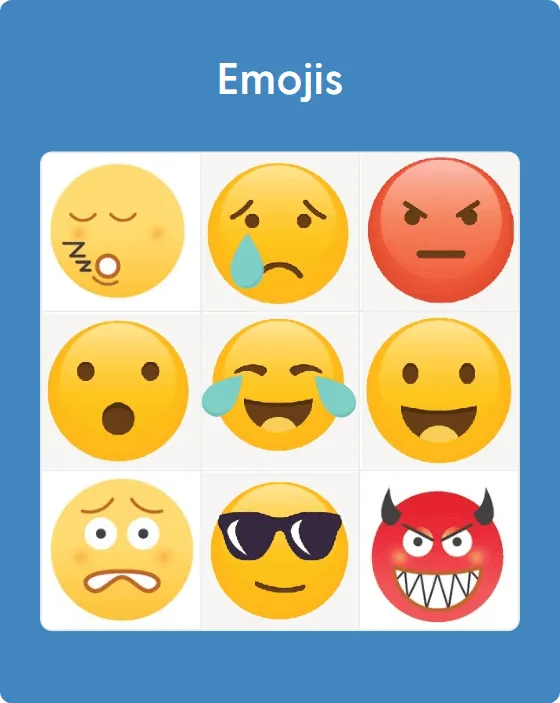
You can mix images with words and emoji on the same custom card. Mixing formats helps when one item is best represented by a photograph while another works better as a short label or symbol. The card-creation guide shows the complete editor workflow.
Use images you created, licensed, or have permission to reproduce. Avoid uploading branded characters, artwork, or photographs simply because they are available through an image search.
Common picture-bingo problems
The images look too similar
Several kinds of bird, flower, or vehicle may be difficult to distinguish at card size. Use more distinctive examples, add captions, or make the differences part of clearly written clues.
Important details disappear when printed
Preview the card at the selected paper size. Crop closer to the subject or replace images that depend on small background details.
Players are unsure what the caller means
Create the call list before generating the final set. Give each image one agreed name or clue and use the same wording throughout the round.
The game ends too quickly or lasts too long
Adjust the grid size and winning pattern. A 3×3 line game will usually finish sooner than a 5×5 full-card game.
The generated cards have not been checked
Preview the cards and caller list together. Confirm that every called item can appear on a card, the images are visible, and the chosen winning pattern makes sense for the grid.
Choose one of the ready-made picture bingo templates to begin. If none fits exactly, open the closest match and replace its images while keeping the layout and styling you want.
Generate bingo cards,
your way
Unleash your creativity with our versatile generator that simplifies the creation of personalized cards featuring text, emojis, and images!
Create card