
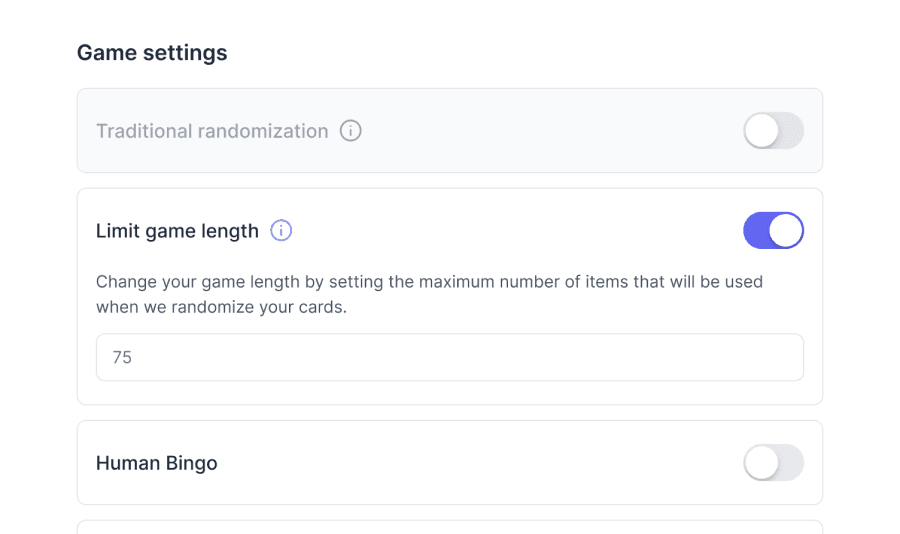
How do I create a bingo card?
Use the card editor to choose a card type, add your content, configure the grid, and adjust the design. The editor is organised into Setup, Design, and Templates.
Open the card editor
Open the bingo card generator. The editor may reopen your most recent card, so check the title before making changes.
Choose Custom or Classic
In Setup, choose a card type:
- Custom lets you add your own words, images, AI suggestions, or emoji. Custom cards can use a 3×3, 4×4, or 5×5 grid.
- Classic creates a numbered 30-, 75-, 80-, or 90-ball card. The 75-ball format is selected by default.
Switching between Custom and Classic changes the preview. Returning to Custom restores the custom items already entered.
Add a title or logo
In Title, enter a card title of up to 120 characters. Use the controls beside the title to:
- keep the title as text;
- replace the visible title with an uploaded image; or
- hide the title from the card.
Title images can be JPG, PNG, or WebP files. The editor recommends 512×512 pixels and limits files to 5 MB.
Add items to a Custom card
Select Add items, then choose the type of content you want to add:
- Words: enter one word or phrase per line, then select Add to card.
- Images: upload an image or choose one from Gallery.
- Ask AI: describe the items you need and review the generated suggestions before adding them.
- Emoji: search or browse the emoji categories, then select an emoji to add it.
The preview updates as items are added.
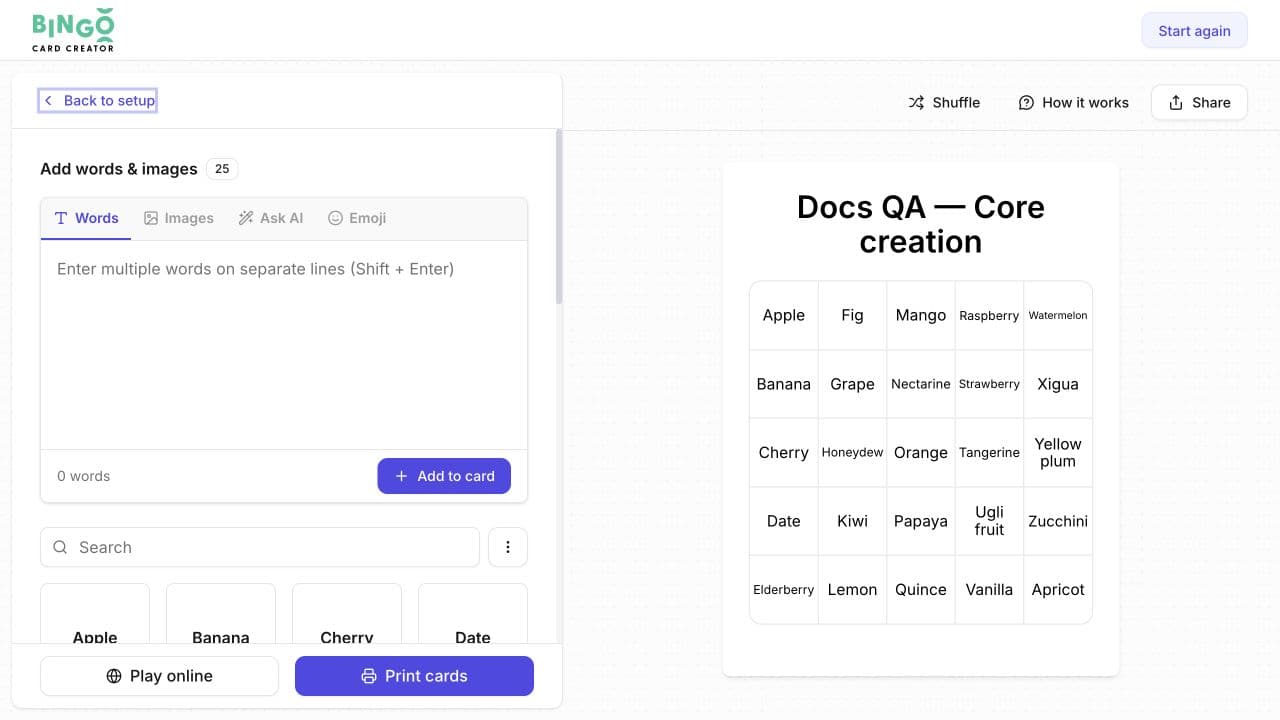
Add emoji items
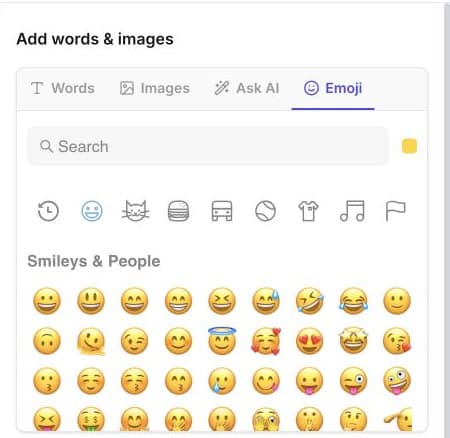
- Open Add items and select Emoji.
- Search for an emoji or browse the categories.
- Choose a skin tone when that option is available.
- Select an emoji to add it to the card.
Repeat the final step for each emoji you need. Emoji are card items, so the grid size and randomisation method determine where they can appear in generated cards.
Choose the grid and randomisation method
For a Custom card, choose a 3×3, 4×4, or 5×5 grid. The available randomisation rules change with the grid size.
| Grid | Full card randomisation | Classic bingo column-restricted |
|---|---|---|
| 3×3 | At least 9 items, or 8 with a free space | At least 30 items; the first 30 are used |
| 4×4 | At least 16 items, or 15 with a free space | At least 80 items; the first 80 are used |
| 5×5 | At least 25 items, or 24 with a free space | At least 75 items; the first 75 are used |
With Full card randomization, items can appear in any position. With Classic bingo (column-restricted), each column uses a specific part of the item list, so the order of your items matters.
A free space reduces the Full-card minimum by one. In column-restricted mode, you still need all 30, 80, or 75 items listed for the selected grid. The free space takes one position on the finished card.
The randomisation method controls where items can appear. It does not guarantee that every printed card will have a different layout. See How are cards randomized? for details.
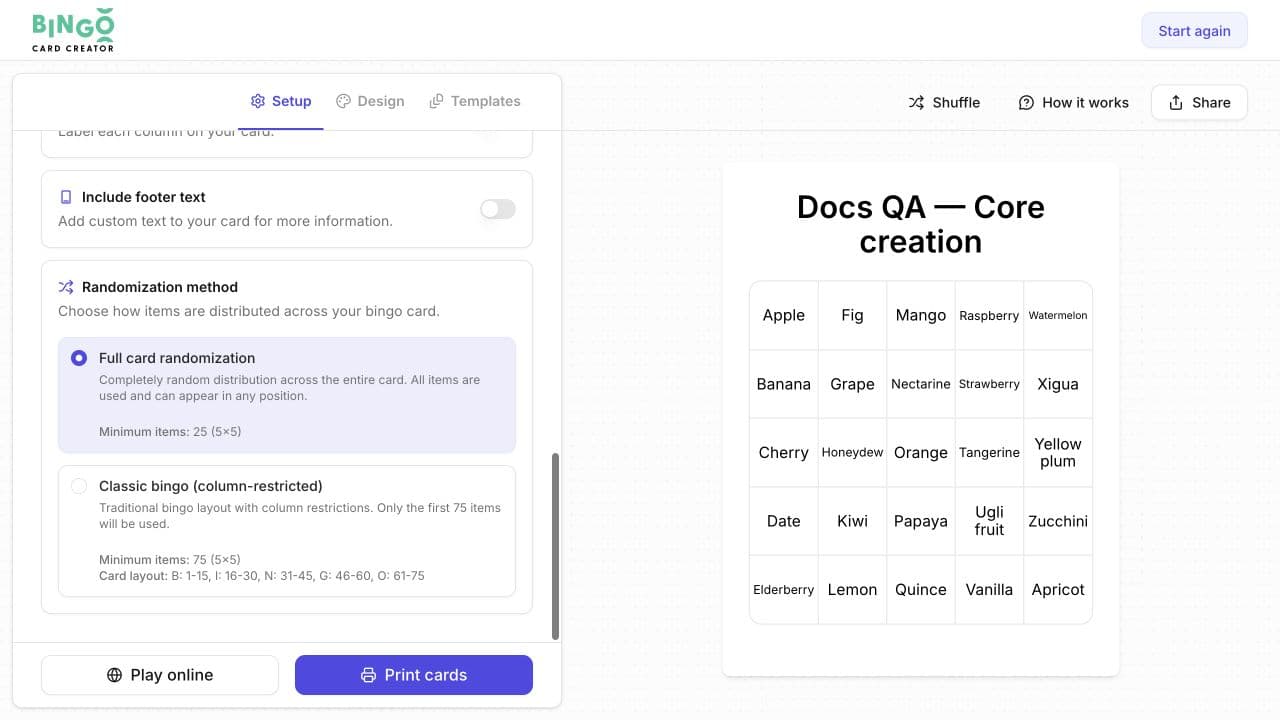
Configure additional options
Use Additional options to add any of the following:
- Add a free space: enter free-space text or upload a JPG, PNG, or WebP image. The editor recommends 512×512 pixels and limits files to 5 MB.
- Include column headers: show labels above the grid.
- Include footer text: add up to 100 characters below the card.
Adjust the design or apply a template
Open Design to change the card title styling, grid styles, card background, or header background.
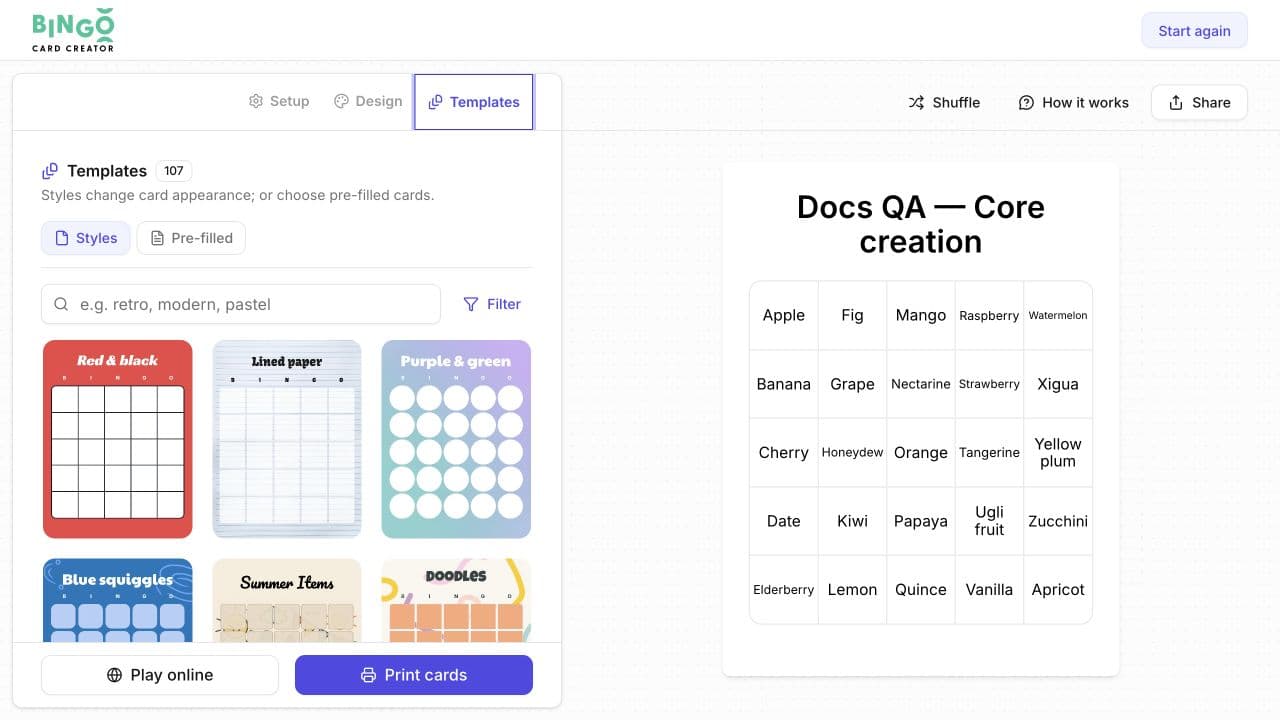
Open Templates to choose between:
- Styles, which change the card's appearance; and
- Pre-filled, which provide prepared card content.
Review the preview after applying a template because it may change more than one part of the card.
Print or play online
Select Print cards to prepare printable output, or Play online to start an online game. If you're signed out, the editor asks you to create an account or sign in before continuing.
The editor saves changes as you work. There is no separate save button at the bottom of the editor.
If something doesn't look right
- If the editor opens an earlier card, confirm that it is the card you want before changing its contents.
- If a randomisation option is greyed out, add the minimum number of items shown beside it.
- If an upload is rejected, use a JPG, PNG, or WebP file no larger than 5 MB.
- If you can't continue to printing or online play, sign in when the account prompt appears.
Related guides
Was this article helpful?
Related articles
Browse all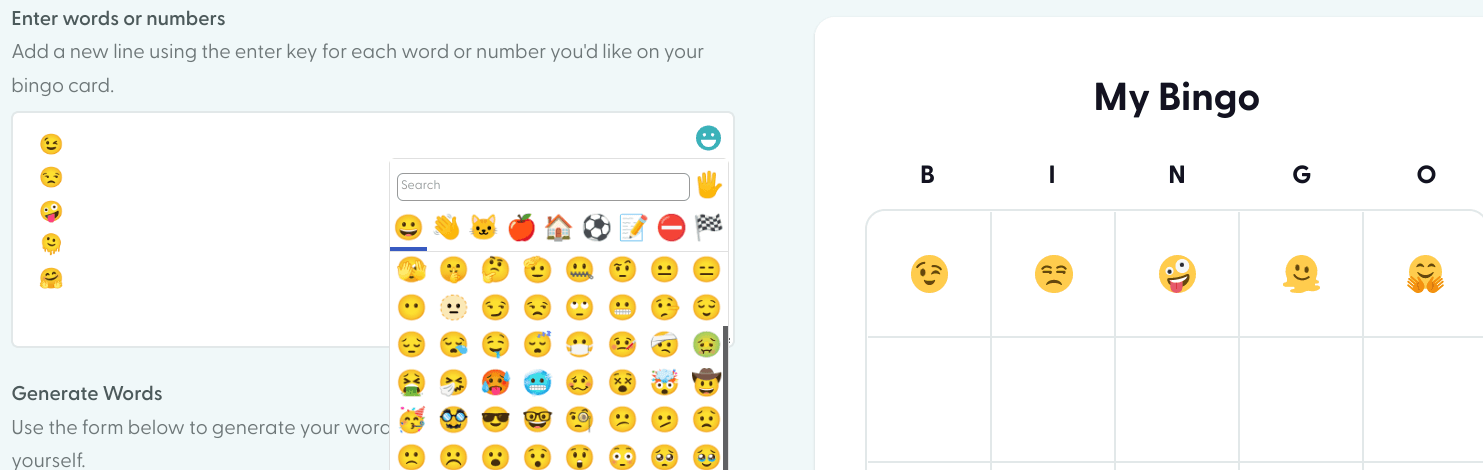
Still have questions?
Haven't you found what you're looking for in our support area? Contact us by selecting the button below.
Contact us