How do I start from a template?
Use the template gallery when you want a prepared card. If you already have a card open, use the editor's Templates tab to apply a style or pre-filled template.
Start from the template gallery
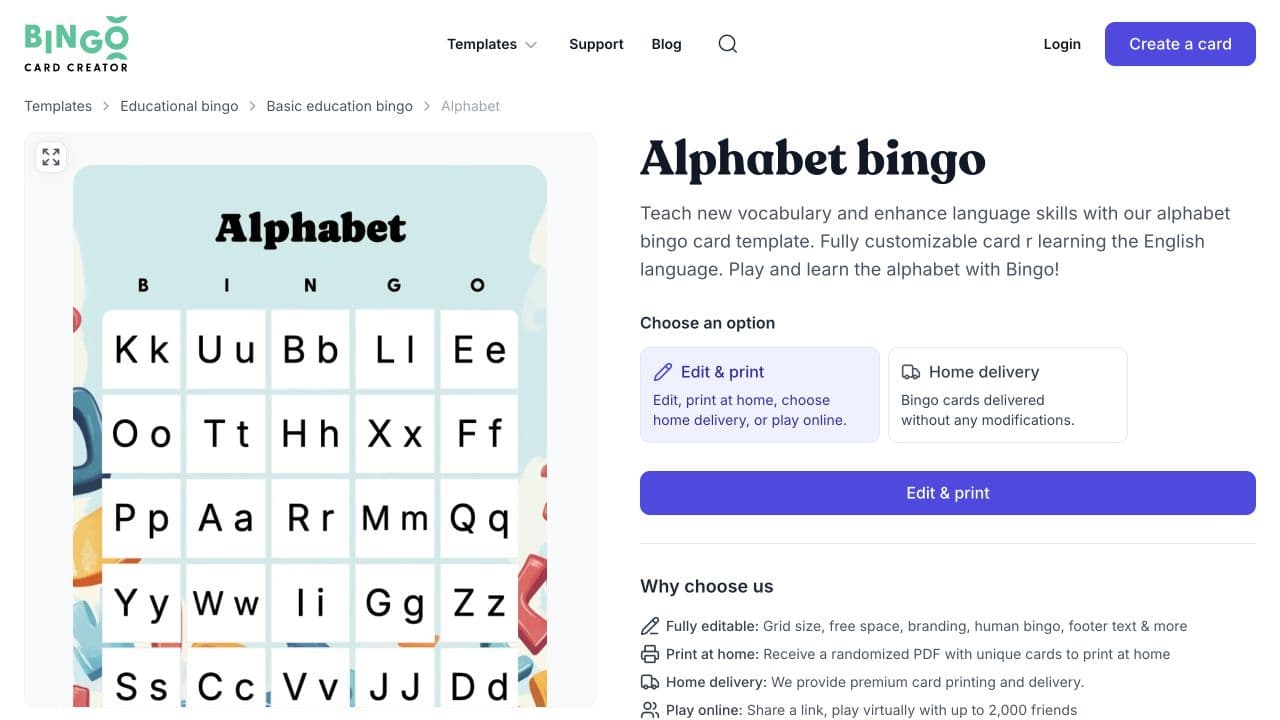
- Open the bingo card templates page.
- Browse a category, or select Filter to narrow the catalogue by age suitability, difficulty, or grid size.
- Open a template to review its card content.
- Select Edit & print to open a copy in the card editor.
- Review the card in Setup and Design before printing or playing online.
The template's title, items, and design are copied into the editor. Your changes affect only your copy, not the template in the gallery.
Some templates also offer Home delivery. That action opens the printed-card options for the selected template rather than the card editor.
Apply a template from the editor
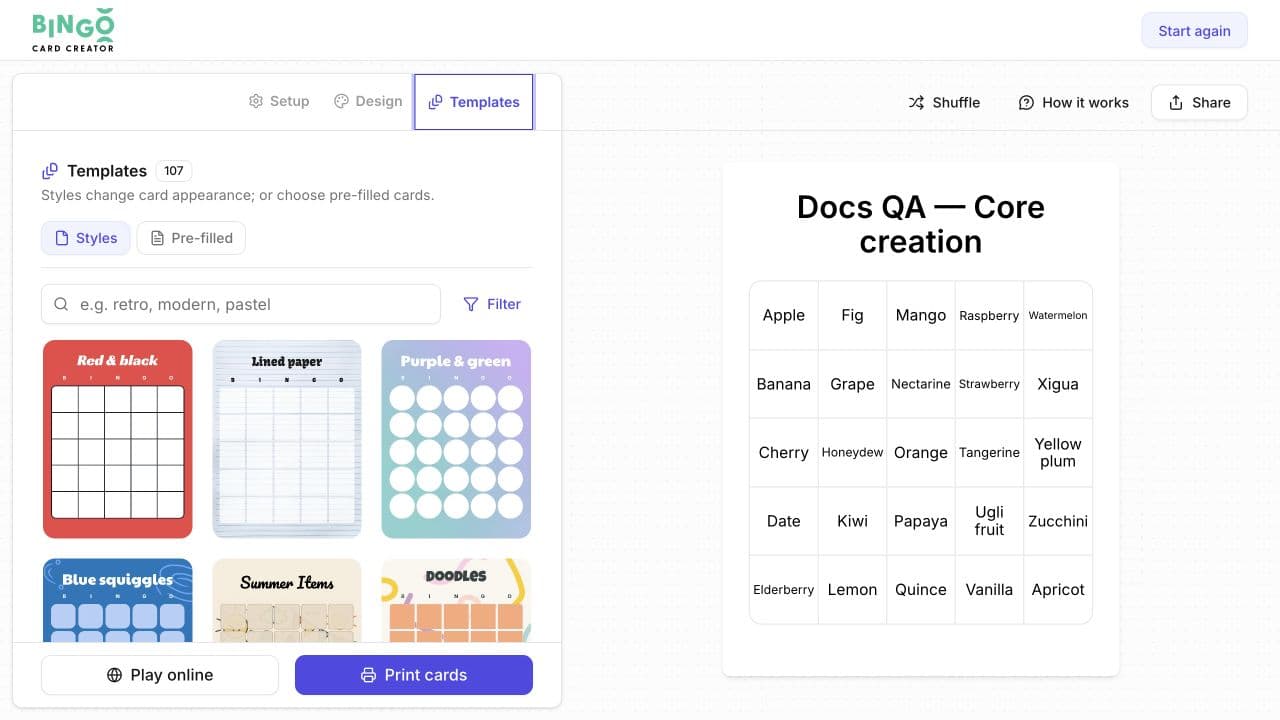
If a card is already open:
- Select Templates at the top of the editor.
- Choose Styles to change the card's appearance, or Pre-filled to use prepared card content.
- Select a template and review the preview.
- Return to Setup or Design to adjust the result.
Applying a template may change several parts of the card. Check the title, items, grid, headers, background, and preview before continuing.
Print, order, or play
- Select Print cards in the editor to prepare printable cards.
- Select Play online to start an online game.
- Select Home delivery on a template that offers it to configure printed cards for delivery.
If you're signed out, printing or online play may ask you to create an account or sign in.
Related guides
Was this article helpful?
Related articles
Browse all
Still have questions?
Haven't you found what you're looking for in our support area? Contact us by selecting the button below.
Contact us