
How do I view my created cards?
Sign in and select Cards in the header to view cards associated with the current account. You can also open Cards directly.
Find a card
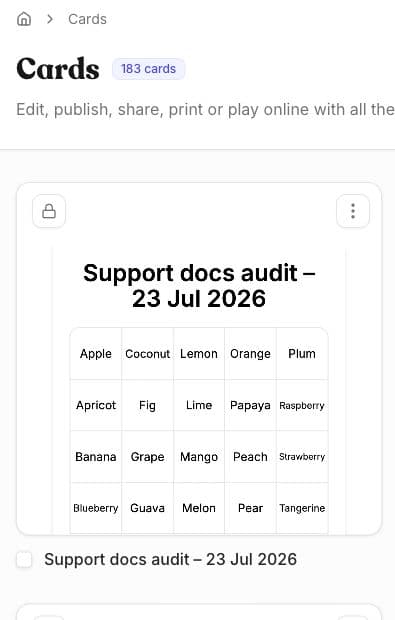
- Sign in using the account that was used to create or save the card.
- Select Cards.
- Use Search when you know part or all of the card title.
- Select the card preview or title to open it in the editor.
The result count changes to match the search. Clear the search to return to the full card library.
Use a saved card
Open a card's actions to choose the task you need. The current menu includes Edit card, Duplicate, Share, Print cards, Make calls, Start game, and Delete.
Use Duplicate when you want a separate version before making substantial changes. Deleting a selected card shows a confirmation that the action cannot be undone. Continue only when you are certain you selected the intended card.
Share a card
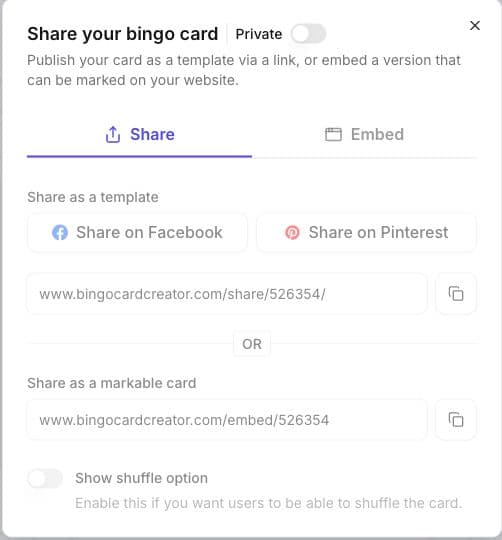
- Open Cards, open the card's actions, then select Share.
- Change the card from Private to Public.
- Choose how you want to share it:
- Share as a template gives the recipient a preview with a Make a copy button. Their copy can be edited, printed, or used for an online game.
- Share as a markable card opens an interactive card. The recipient can mark squares in their browser.
- Embed on your website provides code to paste into a custom HTML or embed block on your website.
- Turn on Show shuffle option if recipients should be able to change the order of the items on their card.
- Copy the link or embed code you need.
Changing the card back to Private makes the shared template, markable card, and embedded card unavailable.
Use a markable card when each person only needs a card they can tick off for themselves. If they open the link on another phone, computer, or web browser, their previous marks may not be there. They also will not see the caller's words or numbers appear automatically. For a live game where every player receives the caller's updates, use Start game instead.
Check the signed-in account if a card is missing. Cards and subscriptions may not appear when you use a different Apple, Google, or email identity.
If you can't find a card
- Confirm that you're signed into the expected account.
- Try the original Apple, Google, email, or password sign-in method.
- Check whether the card was created while signed out or in another browser.
- Use I can't find my account before creating another account.
Do not delete or replace a card while trying to recover a missing one.
Related guides
Was this article helpful?
Related articles
Browse allStill have questions?
Haven't you found what you're looking for in our support area? Contact us by selecting the button below.
Contact us