
How to use our bingo caller
Use the caller to draw numbers manually or on a timer, show recent calls, configure audio and patterns, and record winners. The public caller can be opened without creating a card.
Choose a public or saved-card caller
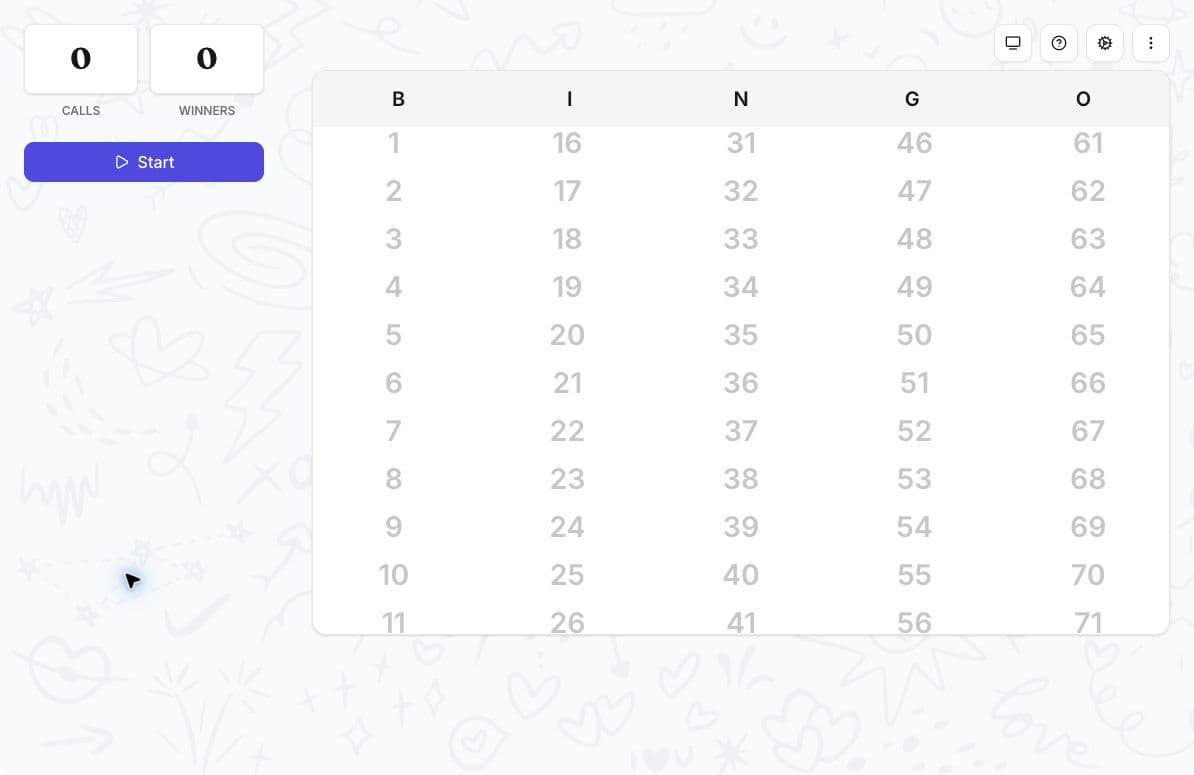
- For a standard number game, open the public 1-75 bingo caller.
- For a saved card, open Cards, open the card's actions, and select Make calls. You can also open the card's print surface and select the Caller tab.
The saved-card caller needs at least one call item. If the card is empty, edit it and add items before selecting Open caller again.
Start a public number caller
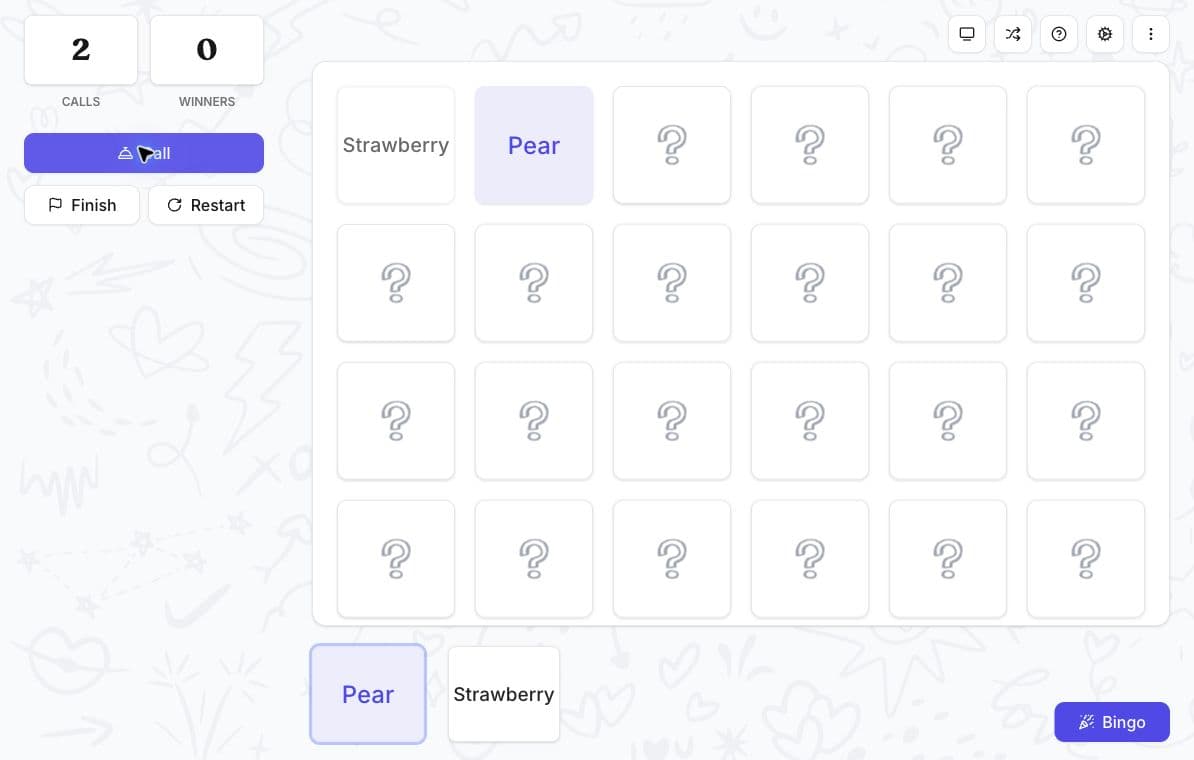
Open the 1-75 bingo caller and select Start. Starting the game makes the first call and changes the controls to Call, Finish, and Restart.
For a manual game, select Call whenever you're ready for the next number. Recent calls appear below the board when that display is enabled.
Selecting Finish ends the round and clears the call and winner counts. Use it only when the round is over.
Configure the caller
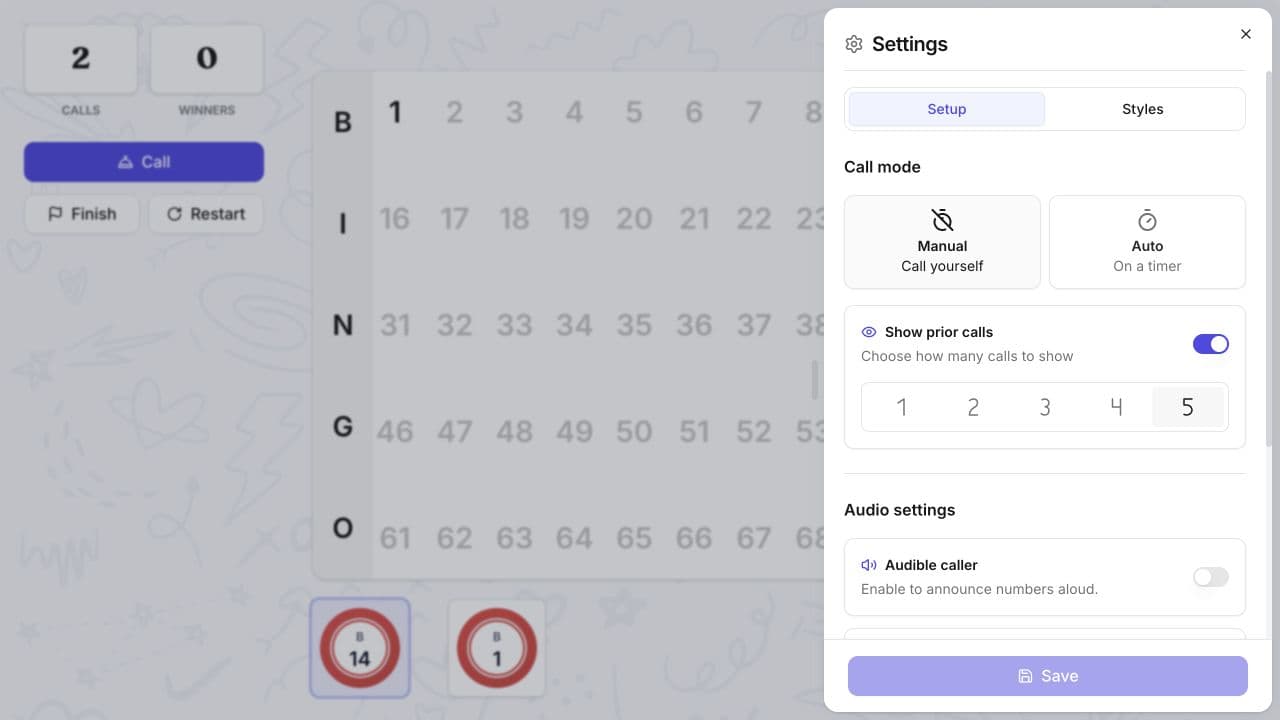
Open Game settings. The dialog contains Setup and Styles.
In Setup, you can configure:
- Manual or Auto call mode;
- an automatic interval of 10, 15, 30, or 45 seconds, or one minute;
- how many prior calls to show;
- the audible caller;
- the audible chime; and
- target patterns.
In Styles, choose an accent colour and board background.
Select Save after changing caller settings. Closing the dialog without saving may discard the changes.
Available voices, chimes, and patterns
The public caller offers these voices:
Adam, Alyx, Announcer, Archer, Brittney, Cassidy, Ember, Grandpa, Halley, Jerry, Joey, John, New York Nick, Nichalia, Oxley, and Robert.
The available chimes are:
Braaaam, Success sound, Service announcement, Pop, Fanfare, Wind, Drum solo, Notice, Guitar, Bell, Happy jingle, Notification, and Ding!
The preset patterns are:
Four corners, Letter Z, Letter X, Letter L, Letter T, diagonal left to right, diagonal right to left, Full house, Outer square, Inner square, Plus sign, Three horizontal lines, Checkerboard, Windmill, and One line in any direction. Select Custom when you need a different pattern.
Use presentation mode
Presentation mode opens a separate synchronized display for the audience while keeping the host controls private. Open it before the game and confirm that the calls and pattern display stay in sync on the screen or projector you plan to use.
Record a winner
- Select Bingo.
- Enter the winner's name if you want it displayed to the audience.
- Select Announce the winner, or select Skip announcement to close the prompt without displaying a name.
Use the call history to check what has already been called.
Make the calls accessible
Keep the visual board available even when audible calls are enabled. Before the game, test the selected voice or chime at the volume and on the equipment you will use for players.
Related guides
Was this article helpful?
Related articles
Browse allStill have questions?
Haven't you found what you're looking for in our support area? Contact us by selecting the button below.
Contact us