
How do I add custom images to a card square?
Use Add items → Images on a Custom card. Images can be JPG, PNG, or WebP files up to 5 MB. A square 512×512-pixel image is recommended.
Add an image
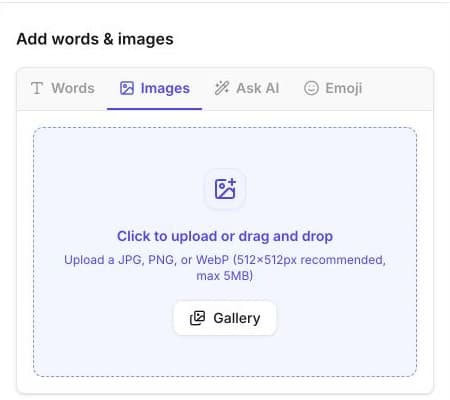
- Open a Custom card in the card editor.
- In Setup, select Add items.
- Select Images.
- Select the upload area, drag and drop an image, or choose Gallery.
- Review the item list and card preview before adding more images.
The preview updates as you add images. You do not need to generate the card separately.
Prepare images for card squares
- Use a square image when possible; the editor recommends 512×512 pixels.
- Keep the main subject away from the edge so it remains recognisable at card-square size.
- Use clear contrast and avoid small text inside the image.
- Check the 5 MB limit before uploading.
If the upload doesn't work
- Confirm that the file is JPG, PNG, or WebP.
- Confirm that it is no larger than 5 MB.
- Try a 512×512-pixel copy if the image is difficult to frame.
- Reload the card and confirm that your existing items are still present before trying again.
Related guides
Was this article helpful?
Related articles
Browse all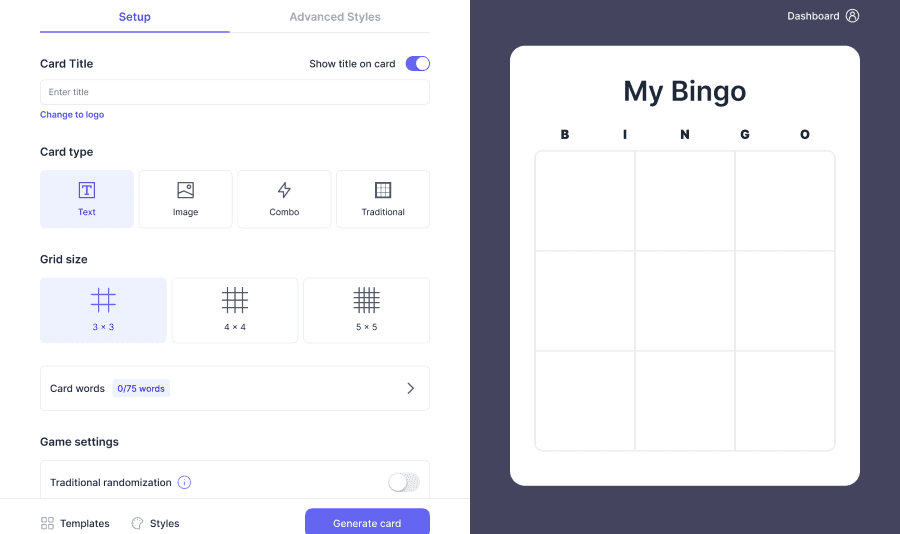
Still have questions?
Haven't you found what you're looking for in our support area? Contact us by selecting the button below.
Contact us