
How do I play online?
The host starts online play from a saved card and shares the room with players. Players join from their own devices, mark their cards, and submit a bingo claim for the host to review.
Choose your role
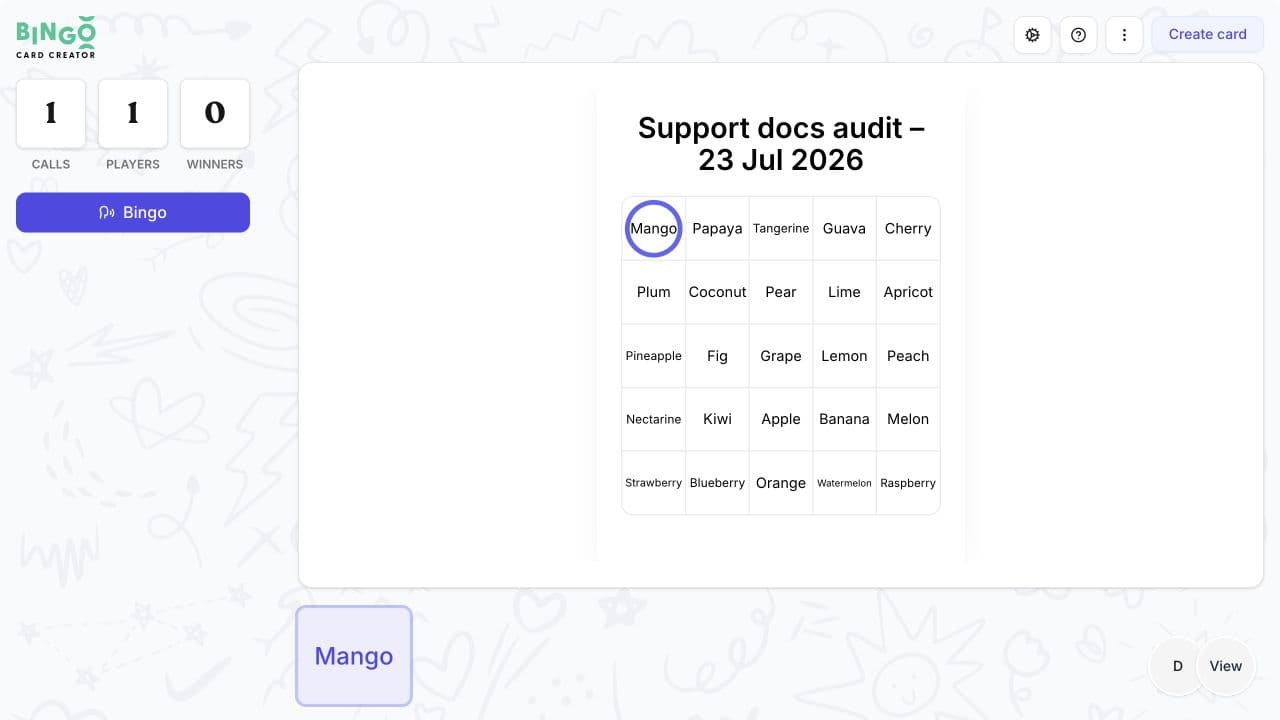
- Host: create the card, start the room, choose the game settings, share access, run the calls, monitor players, and review claims.
- Player: open the host's invitation, join the room, mark the online card, and submit a claim when the required pattern is complete.
Hosts must sign in before starting online play. From the card editor, select Play online and sign in or create an account if prompted.
Check the player limit
Every plan can host up to 50 players by default. Player-limit upgrades are available for larger games, up to 2,000 players.
Check the limit shown for the host account before sharing the room. Players do not need to use the host's account.
Host preflight
Before inviting players:
- Confirm that the correct card is open.
- Review the call mode, prior-call display, audio, pattern, automatic win, automatic marking, and verification settings shown for the room.
- Test sound on the device and equipment that will be used during the game.
- Keep the room open while a second test device joins.
- Confirm how a player will contact the host if they disconnect or cannot hear a call.
Start and share the room
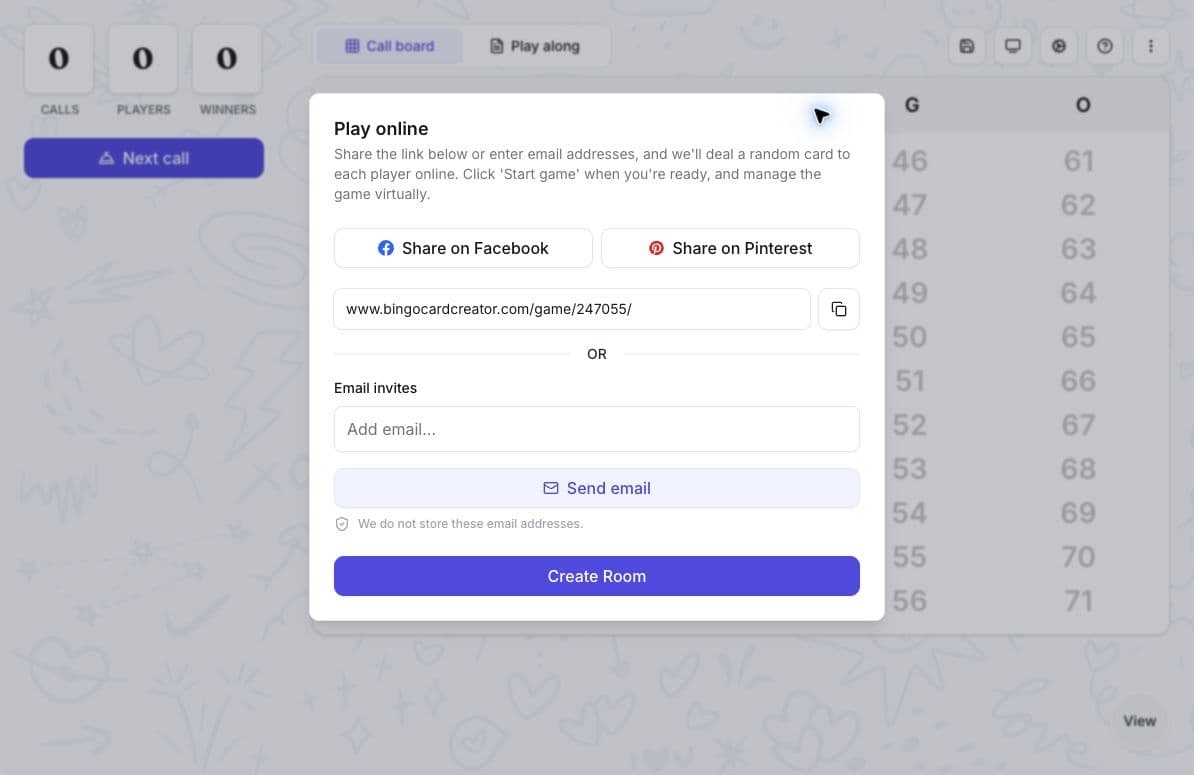
- Open the card and select Play online.
- On the Play online screen, copy the displayed game link or add email invitations.
- Send invitations only when the link and recipient list are ready.
- Select Join game to open the host controls.
- Ask one test player to join before inviting the full group.
- Select Start game when everyone is ready. Starting a manual game makes the first call.
The dialog may also show social-sharing controls. The copied game link is the most direct option across browsers and devices.
Run the game
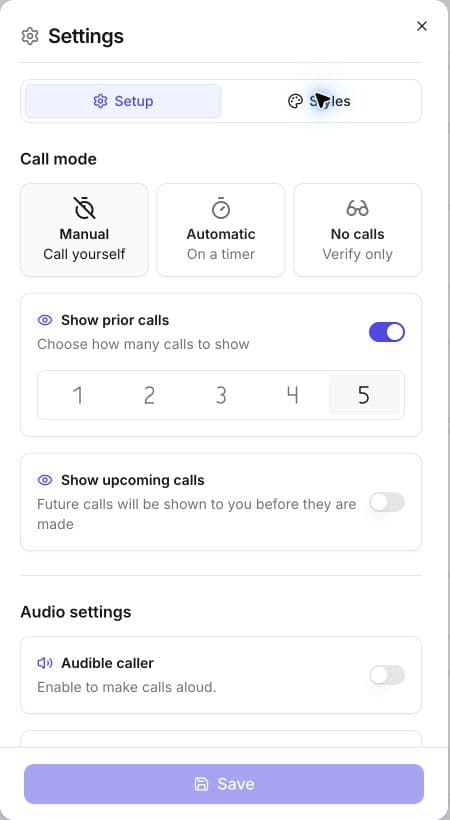
Choose Manual, Automatic, or No calls in the game settings. Use No calls when players should mark their cards without any calls, such as for a scavenger hunt. You can also display a target pattern and enable automatic options:
- Auto-daub marks matching squares for players as calls are made.
- Auto-verify checks a submitted bingo without manual card review.
- Auto-win submits a completed pattern automatically, so the player does not need to select Bingo.
Use the host controls to make calls and monitor the room. Play along gives the host a card they can mark. The presentation view shows the latest call on a separate audience screen. Keep the visible call history available even when audio is enabled so players can check a call they did not hear.
Avoid restarting or closing the room while players are connected unless you intend to end or replace the current game.
Manage players
Select View beside the player count to open Players. Expand a player to view their card or remove them.
Choose Remove when the player should be allowed to ask to return. The player selects Rejoin, then waits while the host accepts or rejects the request in Rejoin requests.
Choose Block only when the player must not rejoin that room.
Review a bingo claim
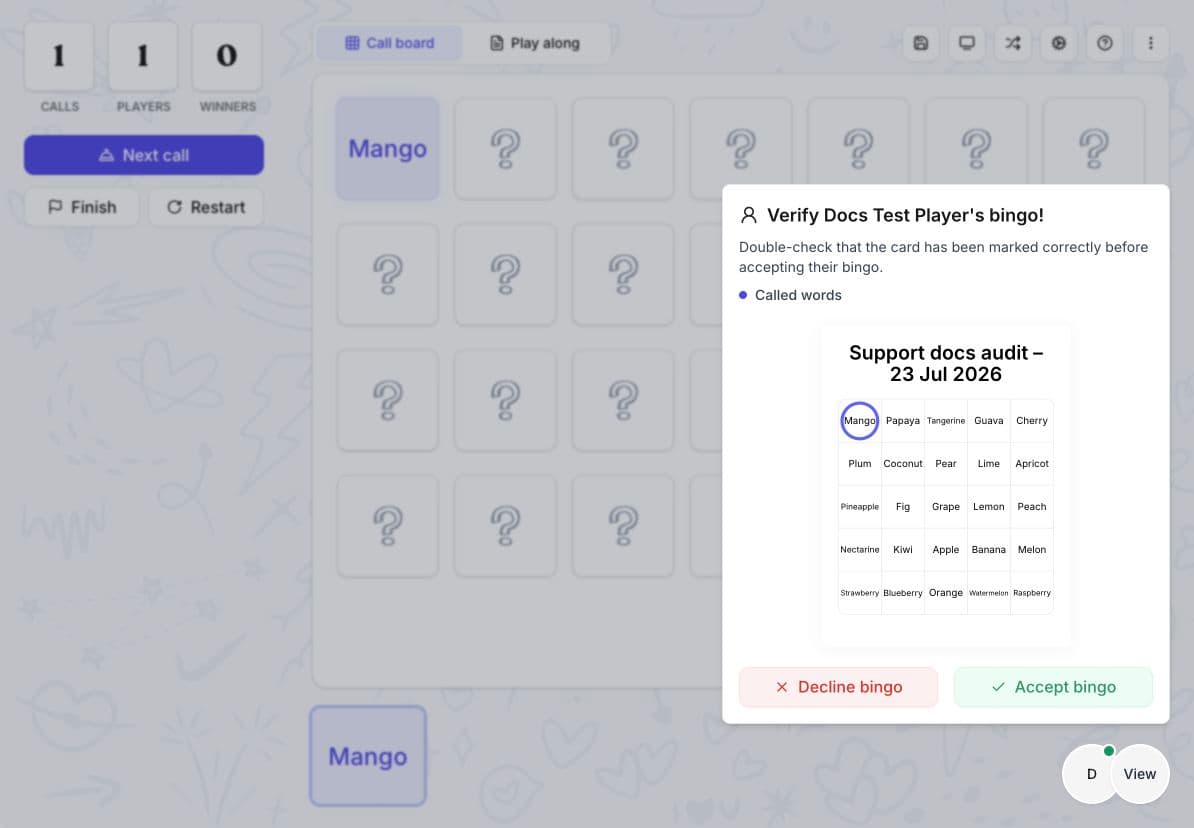
When a player submits a claim, pause new calls and review the marked card in the host controls. Check the required pattern and the called items, then select Decline bingo or Accept bingo.
After accepting a claim, select Continue to record the winner and keep looking for more winners in the same round. Select Declare winners to end the round.
Select Finish when the round is over. Use Restart only when you want to discard the current round. Restarting cannot be undone: it clears the calls, marks, and winners and gives connected players new cards.
Save a game for later
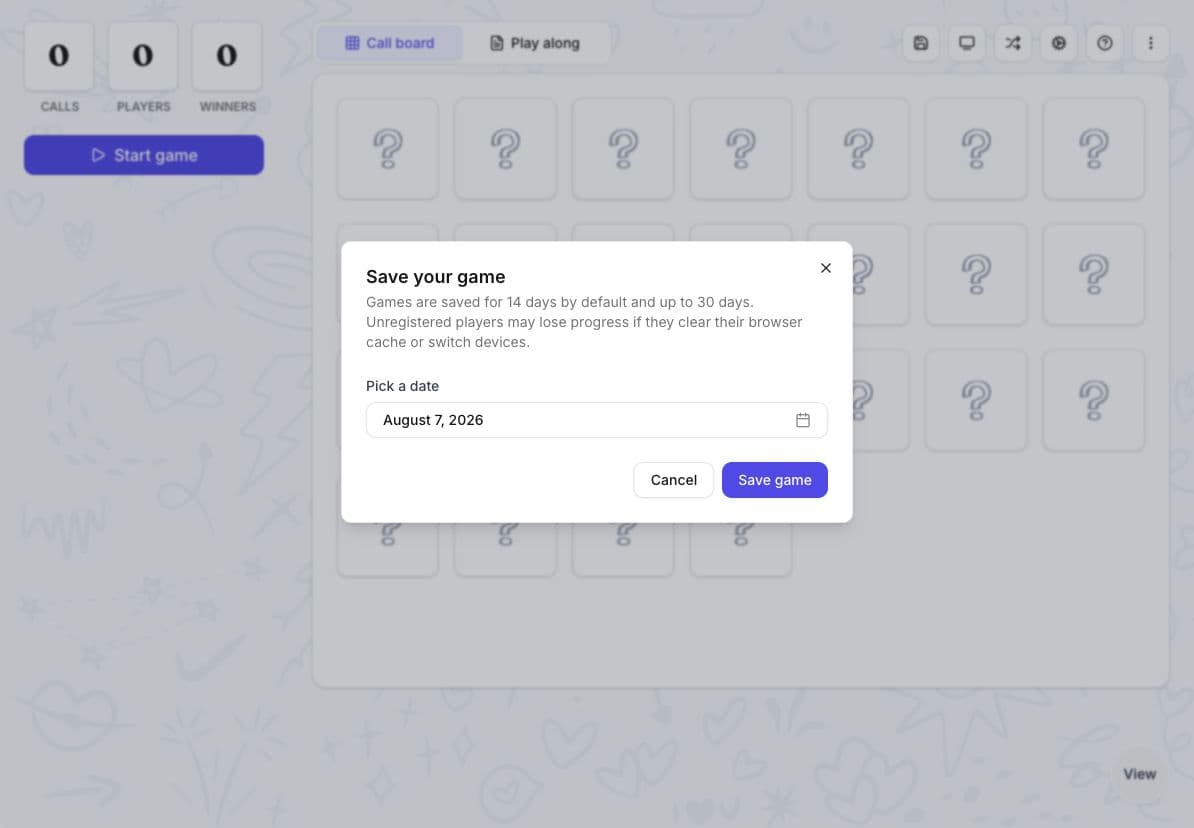
Select the save icon, choose an end date, and select Save game. Games are saved for 14 days by default and can remain available for up to 30 days.
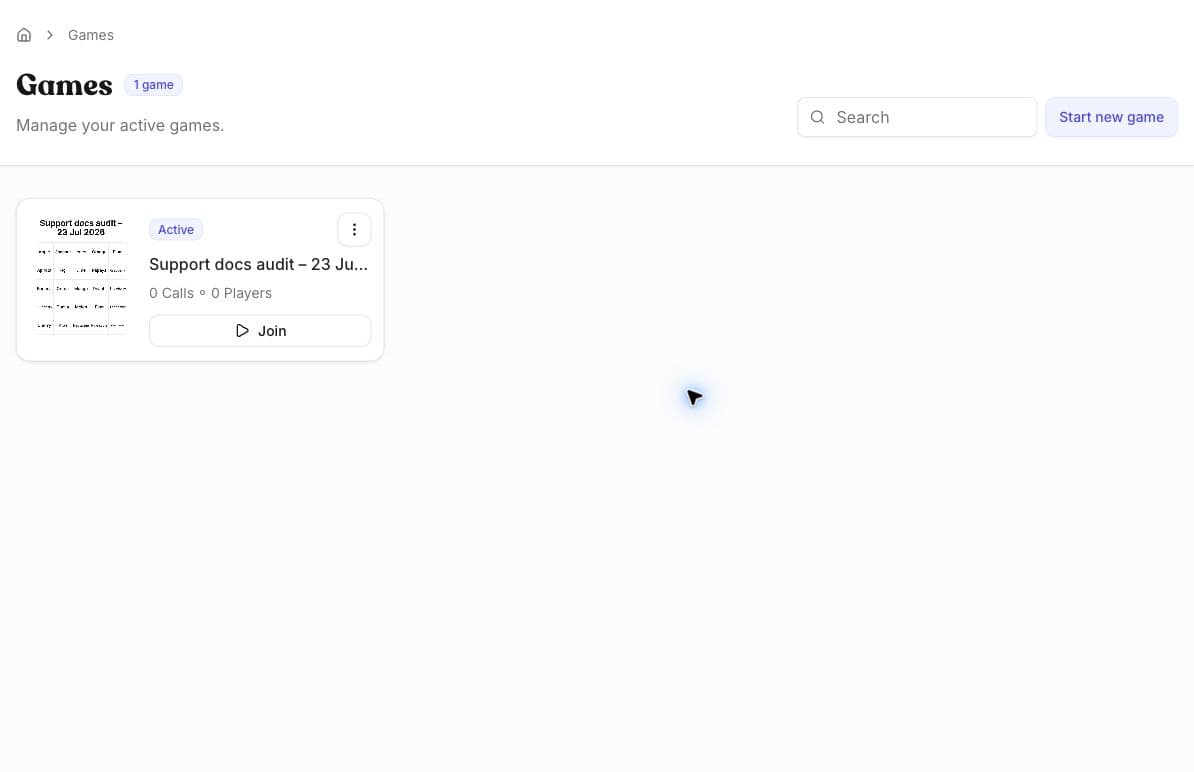
To return, open Games, find the game under Active, and select Join. The game is deleted after the selected date. Players who joined without signing in may lose their progress if they clear their browser data or change devices.
If someone disconnects
If a connection drops, leave the game page open while it tries to reconnect. If the player does not return automatically, open the same invitation again. The host may need to approve a rejoin request.
Keep the original invitation available. Do not clear browser data, restart the room, or create a replacement room while the original game may still be active. A player who joined without an account may lose their marked card if they clear browser data or switch to another device.
Use Online play connectivity issues for a symptom-led checklist.
Detailed guides
Was this article helpful?
Related articles
Browse allStill have questions?
Haven't you found what you're looking for in our support area? Contact us by selecting the button below.
Contact us