
How do I print a card?
Open Print cards from the card editor, choose the PDF settings, and check the preview or sample. Open the downloaded PDF and check its page count and layout before printing.
Before you print
Finish the card content and review the editor preview first. If you're signed out, selecting Print cards asks you to sign in or create an account before continuing.
Open print settings
- Open the card in the editor.
- Select Print cards.
- Choose Print yourself for a PDF, or Premium card delivery if you want printed cards delivered.
The delivery path has separate material, shipping, payment, and order terms. See How do I get bingo cards delivered?.
Configure the PDF
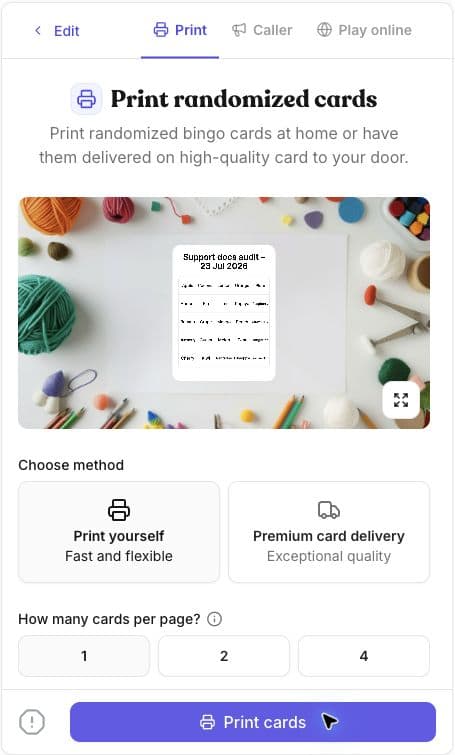
Choose the card quantity, paper size, and cards per page. You can place one, two, or four cards on each page and use Letter, Legal, A5, A4, A3, or A2 paper.
You can generate up to 1,000 cards in one PDF run. At-home printing is unlimited, so you can generate another PDF when you need more than 1,000 cards. This is a quantity limit, not a guarantee that every randomized layout will be unique.
Enable caller cards, card numbers, instructions, or other card-specific options only when you want those pages or markings in the output. Some switches appear only for particular card types.
More cards per page use less paper but make each card smaller. Choose a layout that keeps every square readable at the printer and paper size you will use.
Print edge-to-edge appears only when you select one card per page and Letter paper. If the switch is missing, choose those two settings first.
Check the preview and sample
Before generating the full PDF, check:
- the requested card quantity;
- the number of cards on each page;
- paper size and orientation;
- card numbers and optional pages;
- title, images, free space, headers, and footer text; and
- any edge-to-edge or margin setting that is enabled.
Use the sample output when available to confirm the layout before producing a larger batch.
Generate and print the PDF
Select Print cards, download the PDF, and open it before printing. Confirm the page count and inspect more than one card when randomised output is important.
In the browser or PDF-viewer print dialog:
- Match the paper size used in the PDF settings.
- Review scaling and margins in the preview.
- Print one test page before the full batch.
Remove browser-added headers and footers
If the preview adds a URL, date, page title, or page number around the card, turn off the browser or PDF viewer's Headers and footers option.
This option belongs to the browser or PDF viewer, not Bingo Card Creator. Its name and location vary by browser and operating system. Check the print preview again after changing it.
Browser-added headers and footers are different from the card's column headers and the footer text entered in the card editor.
Related guides
Was this article helpful?
Related articles
Browse allStill have questions?
Haven't you found what you're looking for in our support area? Contact us by selecting the button below.
Contact us