
How do I use the AI word generator?
Open Add items → Ask AI, describe the card items you need, and review the generated suggestions before adding them to your card.
Generate card-item suggestions
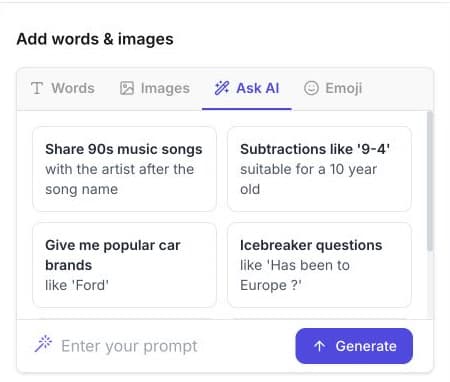
- Open a Custom card in the card editor.
- In Setup, select Add items.
- Select Ask AI.
- Choose an example prompt or enter your own request in Enter your prompt.
- Select Generate.
- Review and edit the generated list.
- Select Add to card only when the list is ready. Use Clear to discard it or Try again to generate another result.
Write a prompt that describes the topic, audience, and kind of item you want. For example, ask for short vocabulary terms rather than a broad lesson plan when each result needs to fit inside a card square.
Generated suggestions may need editing for accuracy, age appropriateness, spelling, fit, or quantity. The generator can return more items than you requested, so review the complete result rather than relying on a number in the prompt.
If you run out of AI credits
The number on Generate shows your remaining AI credits. Each new list uses one credit.
When no credits remain, the editor shows the account or upgrade options available to you. You can still add your own words, images, or emoji without using the AI generator.
Related guides
Was this article helpful?
Related articles
Browse all
Still have questions?
Haven't you found what you're looking for in our support area? Contact us by selecting the button below.
Contact us